
Your reference library
Open My library on the dashboard or in your account menu while signed in to a Tylor server.
It opens a full workspace at /library; you can bookmark it. My library belongs to your account
and is separate from document files. Browser Back returns to where you came from; the page’s
back arrow at the left of My library takes you to the dashboard.
Reloading this page does not open your last document or load its compiler and fonts in the background. This reduces startup work on tablets. When you open a document afterward, its first preview may take a moment while those resources load; cached resources are reused.
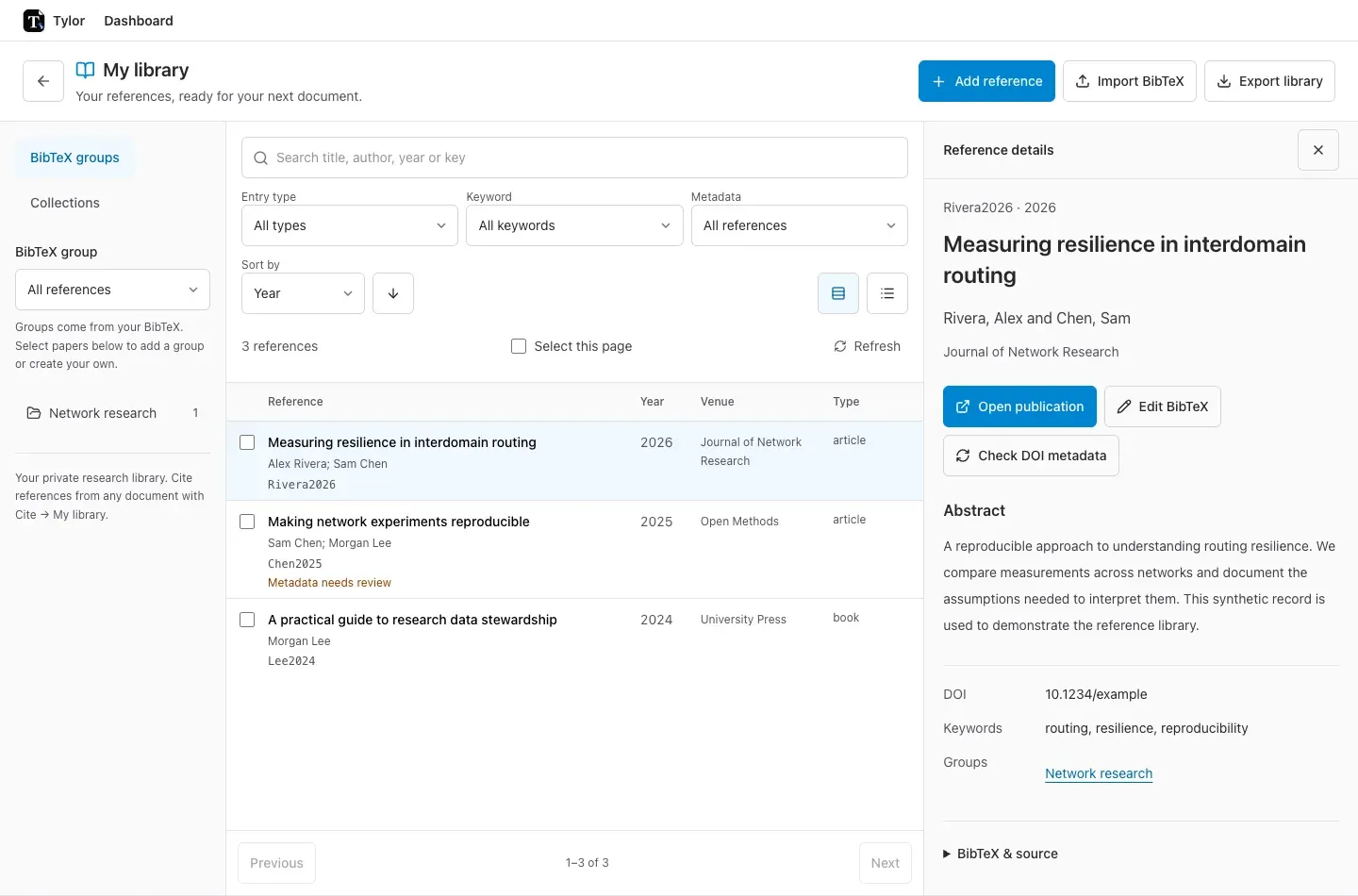
The page header keeps Add reference, Import BibTeX and Export library together. On a wide screen, groups and collections live in the left sidebar, the reference table sits in the middle, and selecting a reference opens its inspector on the right. Close Reference details to give the table the full width. On smaller screens, expand Groups & collections above search; when browsing a group or collection, the disclosure shows its name. On a phone, Back to references returns from the inspector to your results.
Find and compare references
Section titled “Find and compare references”On a phone, expand Filters & sort when you need these controls. Search by title, author, year, DOI or citation key. Search stays within your chosen group or collection. Combine it with:
- Entry type — for example, articles, books or conference papers, using the types in your BibTeX.
- Keyword — match one comma-separated BibTeX keyword, ignoring case. A keyword matches as a whole;
searching for
networkdoes not match the keywordnetworking. - Metadata — Needs review shows existing import warnings; Missing DOI and Missing abstract help you inspect incomplete records. Missing fields are review aids, not a claim that every publication needs them.
Filters and sorting cover the entire matching library before it is split into pages of 100. Filter option counts describe your current search/group/collection before metadata filters. Clear filters clears search and metadata filters while retaining the group or collection.
Use Sort by to order by citation key, title, author, year or last updated. The arrow switches between ascending and descending. Empty values stay last; equal values use citation key order. Year orders the saved year text; Last updated follows saved library changes.
Compact view shows titles, authors and citation keys, with year, venue and type columns when space allows. Expanded view shows full titles and authors plus clickable keywords. Clicking a keyword applies that filter. On phones, year and type appear beneath the title instead of in separate columns. The inspector shows abstracts, publication links, metadata and the saved BibTeX.
Copy citations and export a selection
Section titled “Copy citations and export a selection”- Check references individually or use Select this page (up to 100 references).
- Choose Citation format: Typst, LaTeX, Markdown / Pandoc or Citation keys.
- Expand Citation preview to inspect the text, then choose Copy citations (or Copy citation for one record).
- Use Export BibTeX to download the complete selected entries as
selected-references.bib, in table order. This always exports BibTeX, regardless of the Citation format chosen for copying.
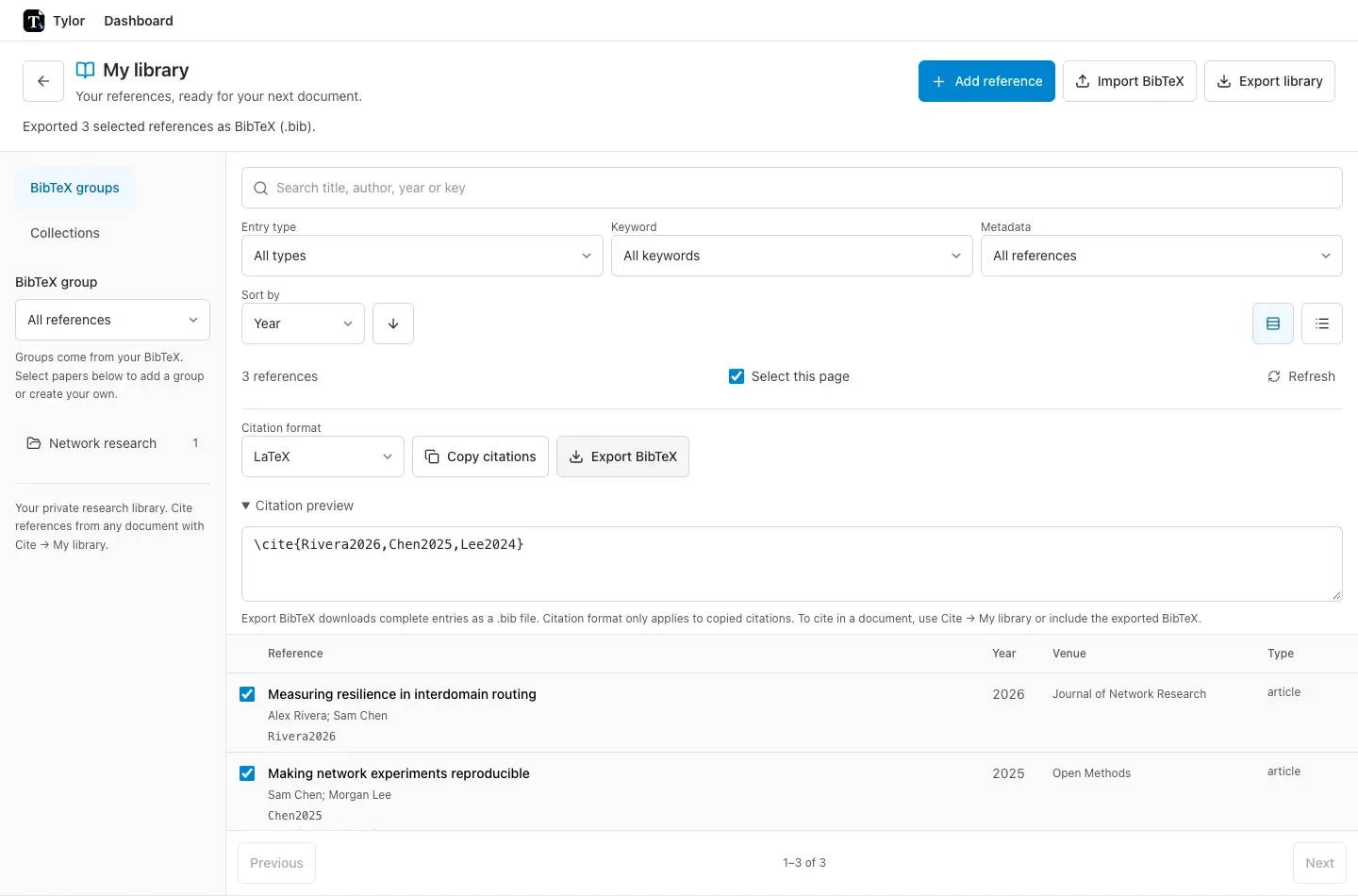
Copying citations copies source commands, not a formatted reference list or bibliography entries.
The destination document must already include those entries. In Tylor, use Document → Cite… →
My library to review and copy entries into a document with collision-safe keys, or include the
exported BibTeX yourself. Typst output uses #cite(label("key")); LaTeX uses \cite{key};
Markdown / Pandoc uses [@key]. Unusual keys that cannot safely be represented in LaTeX or Markdown
show an explanation; choose Typst or plain citation keys instead.
Selected export preserves the saved BibTeX fields. It does not automatically add crossref or xdata dependencies; select any parent records your destination needs as well.
Selection clears when you change search, filters, sort order, group, collection or page, or refresh. Select this page does not select other pages. If your library changes before export, refresh and select again. Export library always downloads the whole library regardless of the current filters. Advanced filters, sorting and selected export require the updated backend; Tylor explains when they are unavailable. Libraries remain private to your account.
Browse and edit BibTeX groups
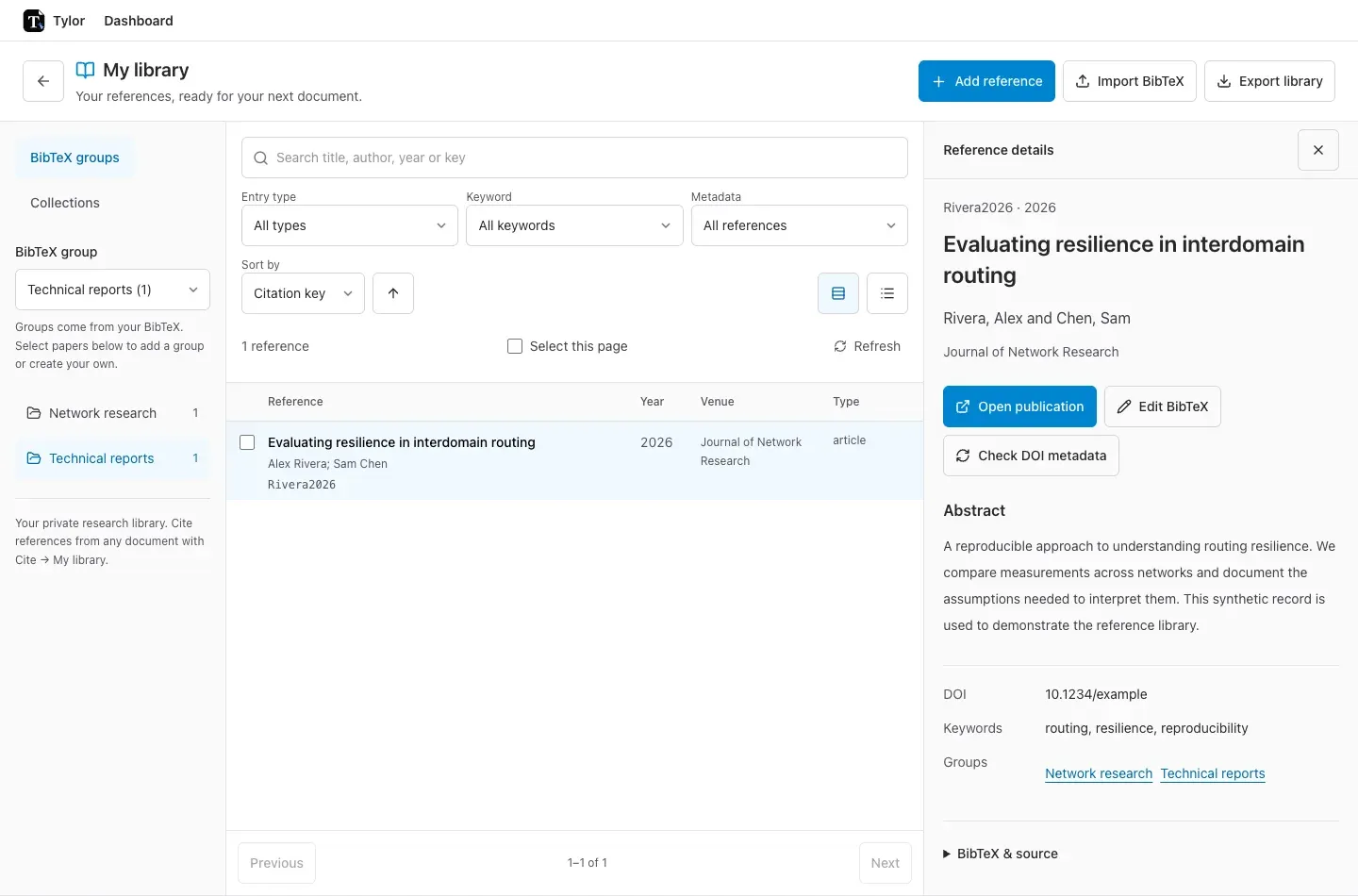
Section titled “Browse and edit BibTeX groups”The BibTeX groups view reads the groups fields already in your library—for example,
Posters, International Conferences or Technical reports. Choose a group to filter the
list, or Without a group to find unassigned papers. A group name in publication details is
also a shortcut to that group.
- Check one or more papers, or use Select this page (up to 100).
- Under Existing or new group name, choose an existing name or type your own.
- Choose Review adding group. Other memberships are retained.
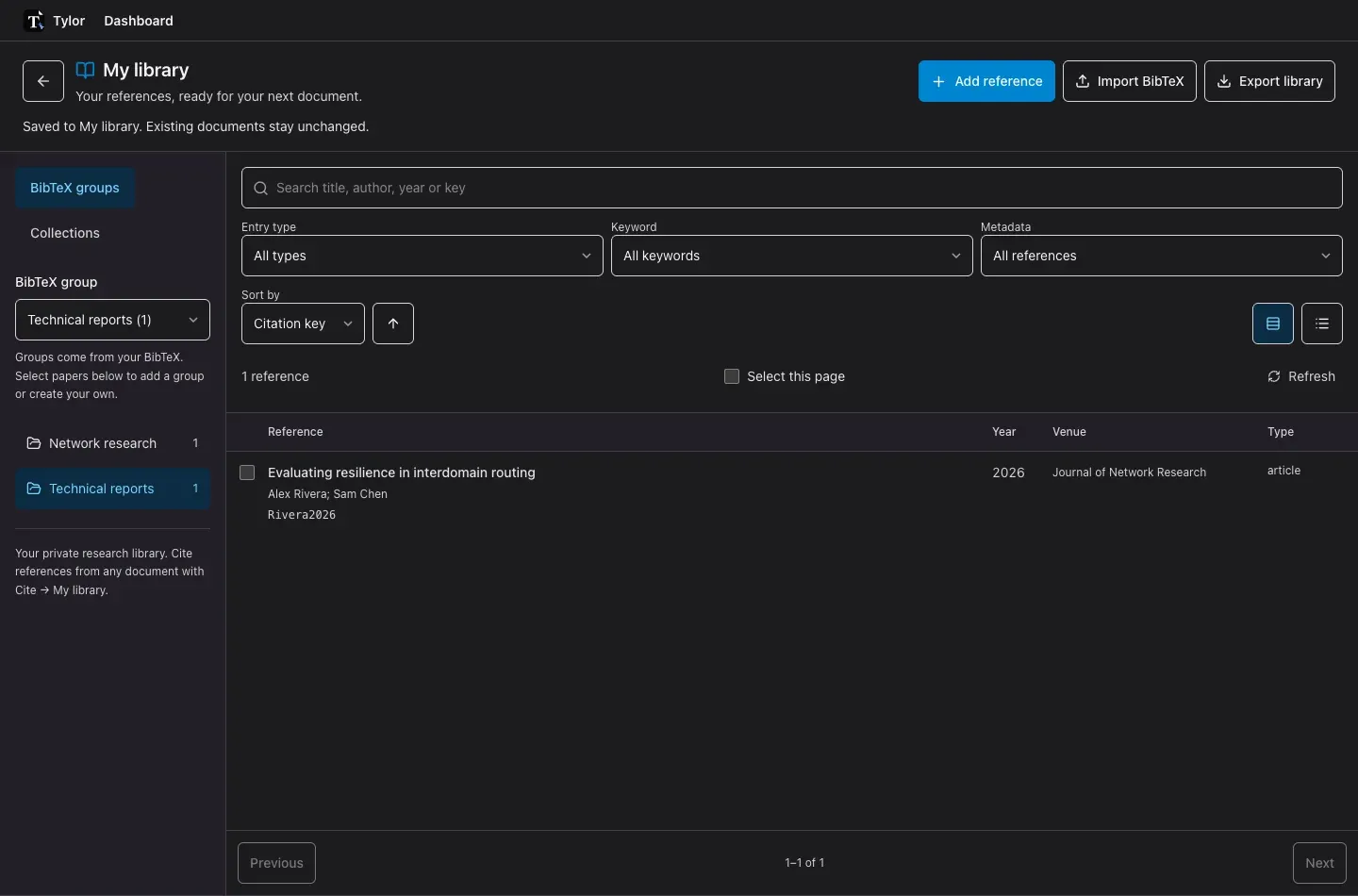
- Inspect the proposed BibTeX changes, select records individually or choose Select all group changes, then Save to My library.
To remove a membership, first browse that group, select papers and choose Review removing group. A group appears when at least one paper belongs to it and disappears when its last membership is removed. To rename a group, add the new name to its papers, then remove the old name; both actions are reviewed. References themselves are never deleted by these operations.
These changes update the actual BibTeX groups field. Export library and CLI library pull
include them, and CLI library push imports local group edits through its normal review. Your local
papers.bib does not change until you sync it; document copies remain independent. A concurrent
library edit invalidates the review so it cannot overwrite newer metadata silently.
Tylor currently supports JabRef’s default comma-separated entry memberships. New group names are
flat, up to 120 characters, without commas, semicolons, braces, backslashes or >. Existing escaped or hierarchical
names can be reused and are preserved. Custom JabRef separators, group trees, colors, dynamic groups and legacy
memberships stored only in jabref-meta comments are not synchronized by this feature. Retain your
original file for those settings. Use Edit BibTeX for formats outside these controls.
Organize references into collections
Section titled “Organize references into collections”Collections are folders for your own bibliography, individual researchers, topics or reading lists. Create subcollections to organize them into a tree. Unlike BibTeX groups, their memberships are not written into bibliography fields. One reference can belong to several collections; its metadata and citation key stay the same everywhere.
- Switch to Collections, choose New collection, enter a name and leave Parent collection at Library root, then Create collection.
- To nest a folder, select its parent and choose New subcollection. Enter a name and choose Create collection. You can also choose a parent while creating any collection.
- Choose All references in the collection tree or the Collection selector.
- Check the papers you want, or use Select this page (up to 100 references).
- Choose a destination under Add to collection, then Add selected. Full folder paths distinguish identically named subcollections.
For example, keep My bibliography at the root, add Researchers → Alice Martin / Bob Chen, and use Topics → Network resilience for a subject area. These are organizational folders, not separate researcher accounts or shared libraries. References can belong to both a researcher and a topic without duplicating their metadata.
The tree’s arrows expand or collapse subcollections. Choose a collection to browse or search its papers including all its subcollections. Counts include those subcollections and count each reference once. The text below the tree also gives the number of direct memberships.
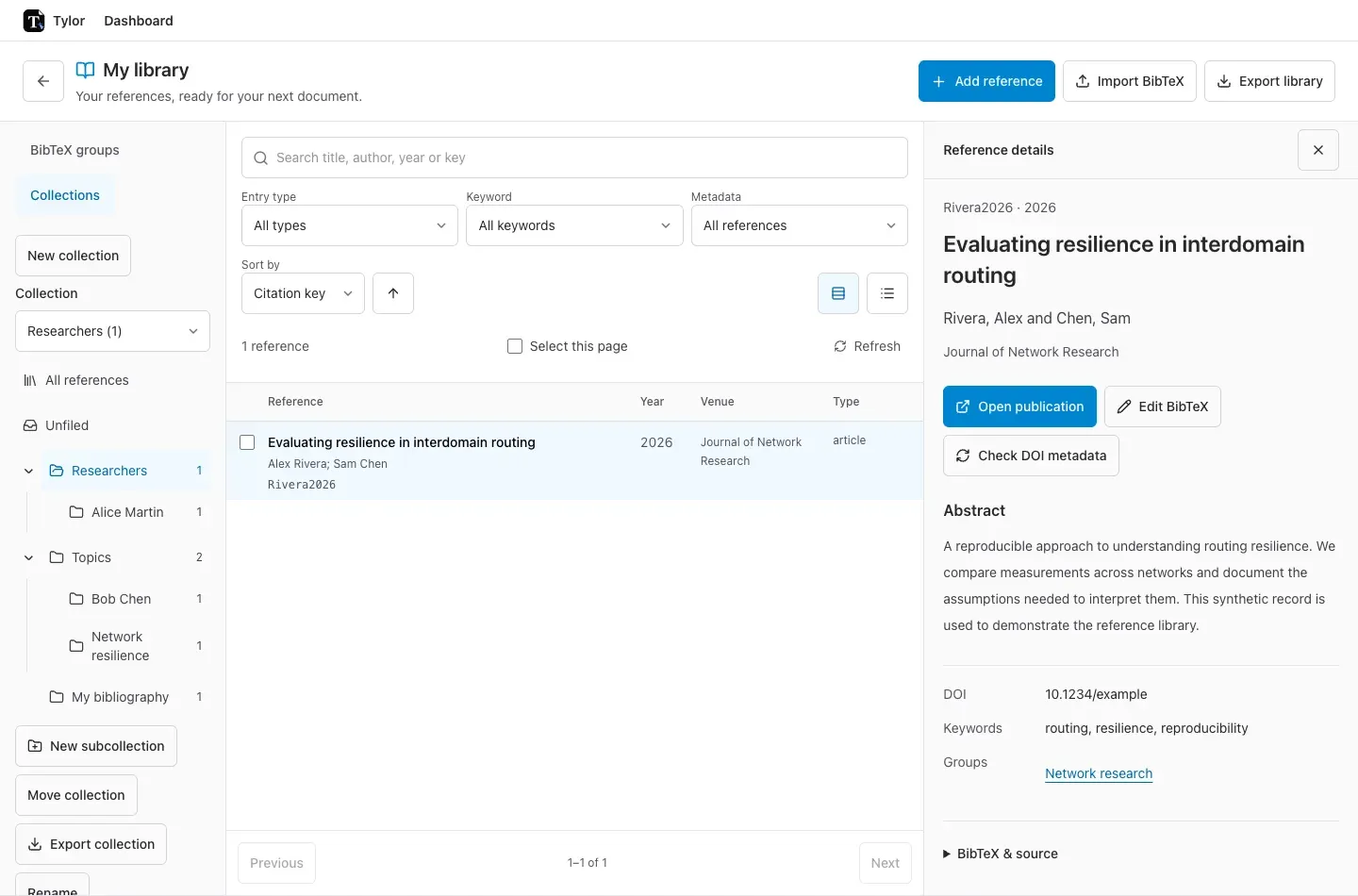
Choose Move collection, select a destination under Move into, then Save location to
move a folder with all its children. Library root makes it a top-level collection. You cannot
move a folder into itself or a descendant. Export collection downloads the whole collection
and its descendants as collection.bib, even across multiple result pages; table search and metadata
filters do not limit this export. Referenced crossref/xdata dependencies outside the collection
are not added automatically.
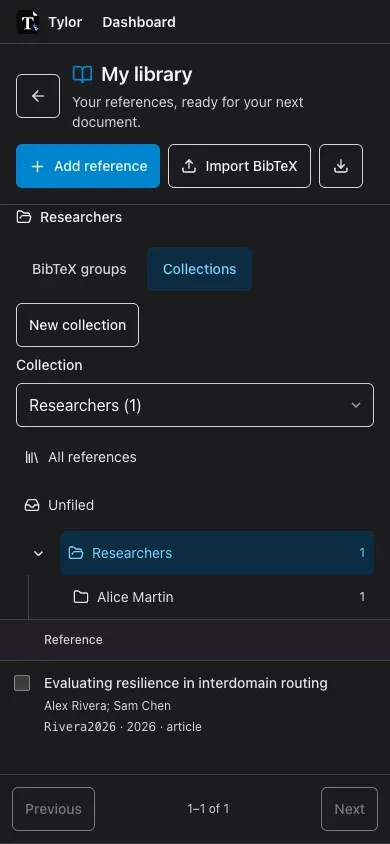
Unfiled shows references that do not belong to any collection. On a phone, use Back to references, then expand the organization disclosure to reach the collection selector. Selection is cleared when you change search, collection or page.
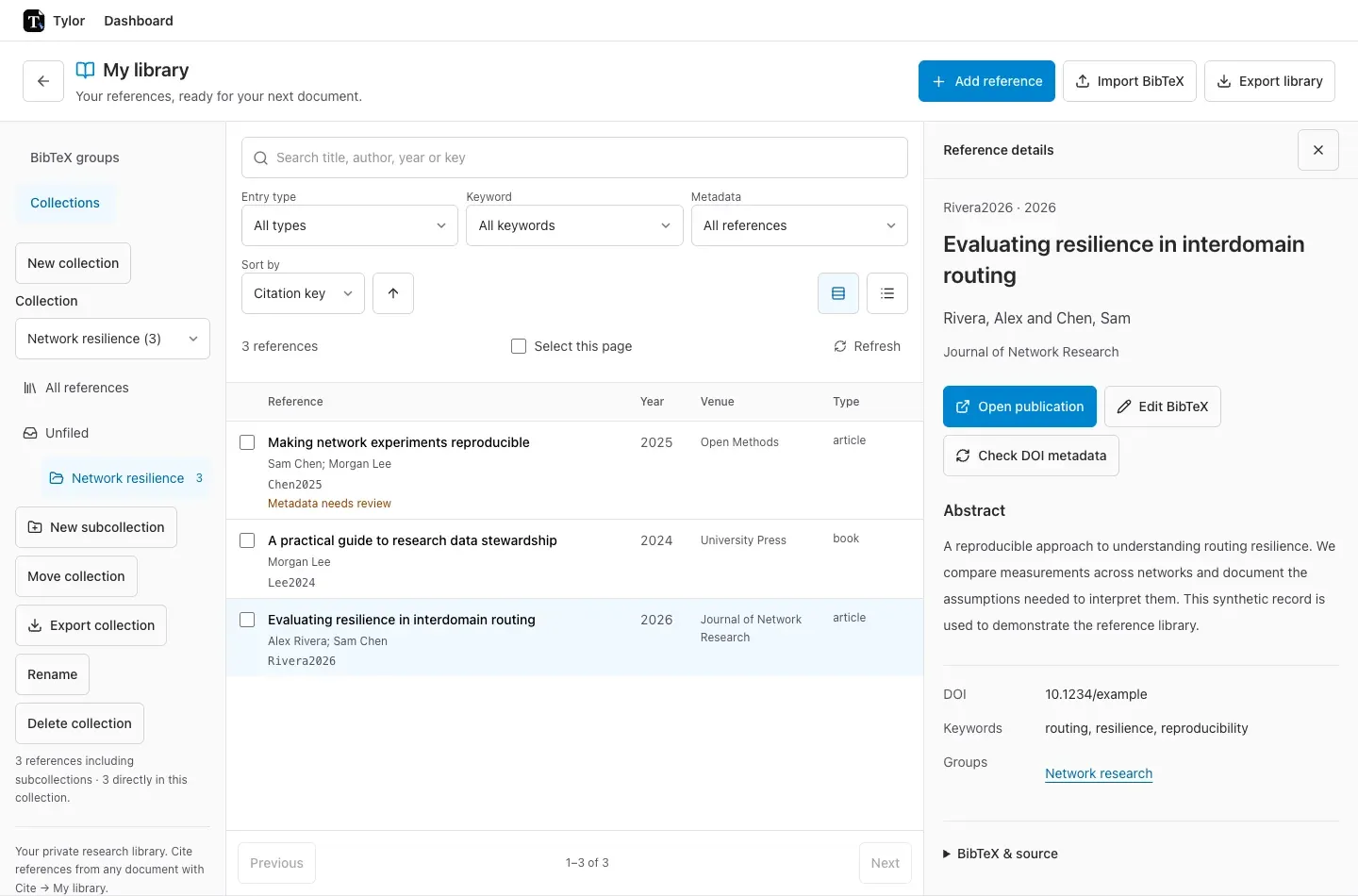
Within a collection, select papers and choose Remove from collection to unfile them from that collection. This removes direct memberships only: a paper inherited from a subcollection stays visible until you remove it from that subcollection. Rename changes the collection name. Delete collection asks you to confirm and keeps every reference in My library and in its other collections. A collection with children cannot be deleted; move or delete its subcollections first.
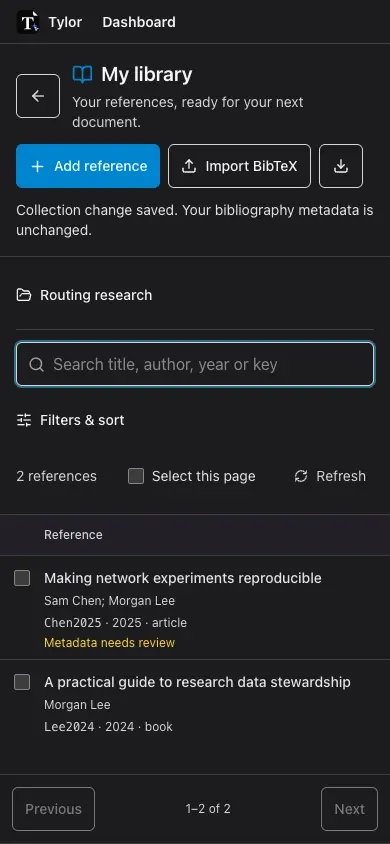
Collection changes need a server connection. Tylor saves the requested change on your device before sending it. If the connection fails, use Retry saved collection change, including after a reload. Wait for confirmation before organizing more papers. If another tab changed the same collection, Tylor asks you to refresh and review your action instead of overwriting that change.
You can create up to 200 collections, with names of up to 120 characters and up to 8 nesting levels. Names must be unique within the same parent; different parents can contain identically named folders. Collections are private to your account. Subcollections, moves and collection export require the updated backend; existing collections become root folders automatically. They do not change BibTeX groups or keywords, travel in BibTeX
exports or CLI sync, or alter document bibliography copies. Export library always exports the
whole library, even while viewing a collection. Importing a new reference leaves it unfiled until
you add it to a collection; replacing existing metadata preserves its memberships.
Import a BibTeX file
Section titled “Import a BibTeX file”- Choose Import BibTeX… and select a UTF-8
.bibfile. - Review the entries and metadata warnings. New records are selected automatically.
- Expand Inspect BibTeX to check protected title capitalization and custom fields.
- Choose Save to My library. Tylor retains the original upload as well as the selected records.
No formatter runs during import. Your original file is unchanged. Files can contain up to 10,000 records and occupy up to 5 MiB; the library holds up to 10,000 records and 20 MiB of exported BibTeX. Records and retained uploads count toward your account storage quota. Particularly large fields or complex macro expansions can require splitting or simplifying the input.
Add a reference by DOI
Section titled “Add a reference by DOI”- Choose Add reference and paste a DOI or
https://doi.org/…link. - Choose Find reference. Only the identifier is sent to the DOI metadata provider.
- Check the returned authors, title, year and BibTeX, then choose Save to My library.
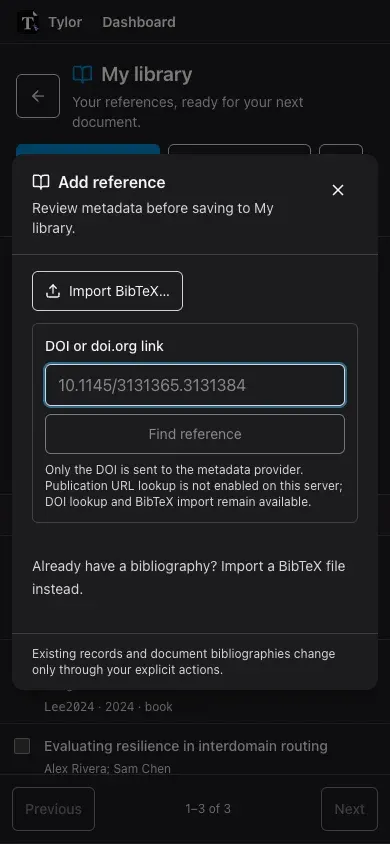
If the DOI already exists, Tylor keeps its library citation key and lets you review a replacement.
Provider metadata can be incomplete or wrong: lookup is not an automatic correction or a guarantee
of publication quality. Nothing is saved when lookup fails. Try again later or import a .bib file.
This currently resolves exact DOIs; searching external providers by title, arXiv or ISBN is not supported.
Add a reference from a publication page
Section titled “Add a reference from a publication page”When your server has URL lookup enabled, Add reference accepts a DOI or publication URL. Paste the public page for one paper, then choose Find reference. DOI links still use direct DOI lookup; other publication pages use Zotero translators.
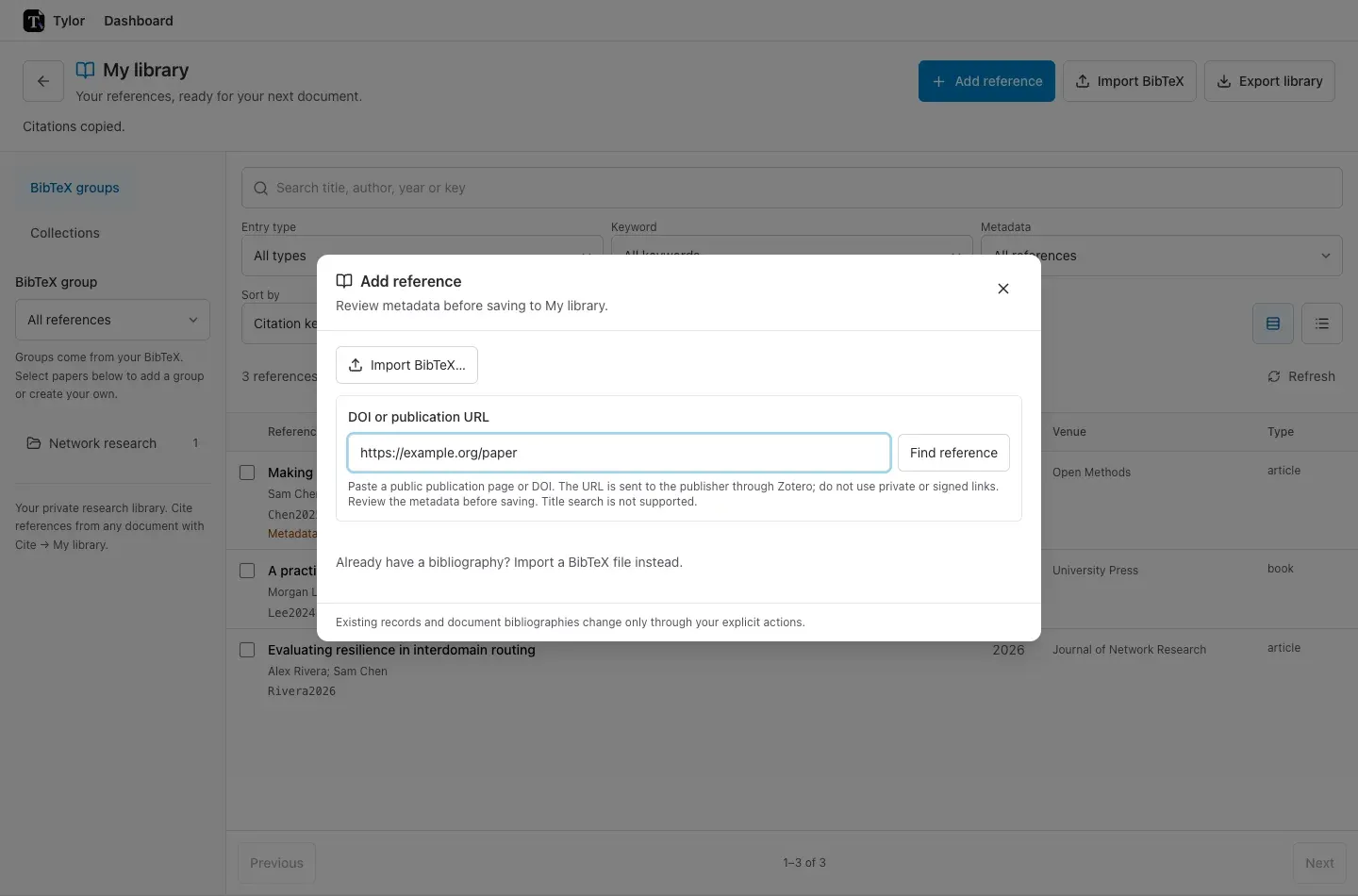
Check the returned title, authors, year and BibTeX. A matching DOI keeps your existing library citation key and offers an optional replacement. An unrelated paper with the same suggested key gets a free key instead. Nothing is saved until you select and save the reviewed record.
The full publication URL is sent to the publisher or repository through the server’s translator. Use public links, not private, login or signed download links. Tylor does not send your account credentials or save attachments and notes. The metadata may reflect a revised publication or be incomplete; lookup is not automatic correction.
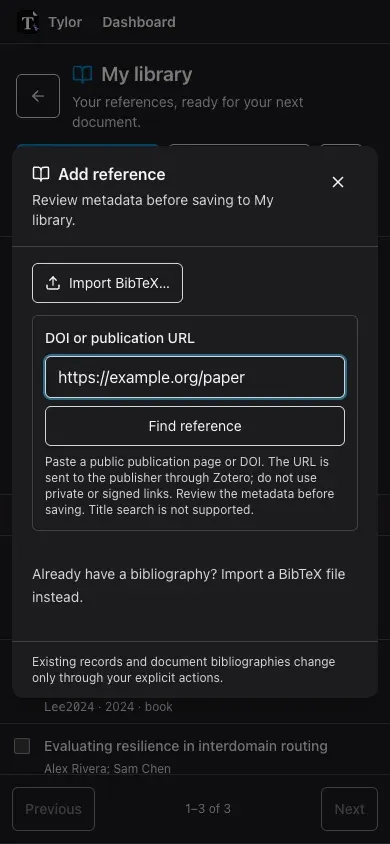
A search-results page containing several works is not imported automatically: use the individual paper’s URL. Some sites block automated access or have no supported translator. Try a DOI or Import BibTeX if extraction fails. Title search, ISBN/PMID lookup and Zotero account sync are not part of this flow. Lookup requires connectivity and can take several seconds.
If the field says DOI or doi.org link, URL lookup is not enabled on this server. DOI lookup and BibTeX import still work; your server administrator can enable the optional translation service.
Keep records clean
Section titled “Keep records clean”Select a reference and choose Edit BibTeX to correct its fields. Keep its citation key and
exactly one entry. Separate authors with and, even when individual names use commas.
Your draft is saved on this device, separately from My library. Keep draft & close lets you return later; reopen the reference and choose Edit BibTeX to resume it. Drafts do not sync to other devices. Download draft keeps a portable copy. If a draft cannot be saved, download it before leaving. Do not clear browser data while you need a draft.
Choose Review changes, expand Compare BibTeX changes, select the replacement, then Save to My library. Saving is explicit; typing alone does not change the account library. Another tab cannot silently overwrite your local draft. If the library record changed since you started editing, download the draft, discard it, reopen the latest record and merge deliberately.
Check DOI metadata retrieves a provider version for comparison when the entry has a DOI. It does not automatically improve or replace your metadata. Review changes carefully: your corrections may be more accurate than the provider’s record.
You can also edit your .bib file in your preferred tools, then import it again. Formatting changes such as
field order, indentation and equivalent quote/brace delimiters do not replace records. Braces
inside a title can protect capitalization and are meaningful.
Changed records start unselected. Expand Compare BibTeX changes, inspect the current and incoming entries, then select the replacements you want. Missing or unselected records are never deleted. Unchanged entries are skipped. Duplicate citation keys or repeated fields stop the import; resolve them in your source first. Conflicting DOI identities are shown but cannot be selected.
If another import changes your library after the preview, Tylor shows a fresh preview and asks you to review again. There is no silent overwrite. Direct field editing and record deletion are not yet available; updates currently use reviewed reimports.
Find and export references
Section titled “Find and export references”On a phone, expand Filters & sort when you need these controls. Search by title, author, year, DOI or citation key. Results are ordered by citation key, with 100 records per page. Open a record and expand BibTeX & source to copy or download that entry, or choose Download original import for the exact upload that supplied its current version. Export library downloads all saved records, including records outside the current search.
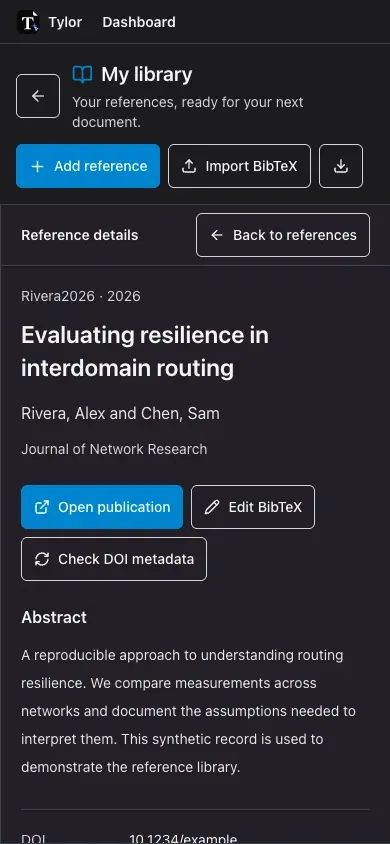
The working export resolves string macros and retains unknown fields and protected braces.
It does not preserve original formatting, comments or preambles. Linked crossref and xdata
fields are retained, not flattened: include their dependent entries and verify compilation.
Use the original download when you need the exact source.
Cite from My library
Section titled “Cite from My library”
- In a document, type
@in ordinary text and choose Choose from My library…. You can also open Document → Cite… → My library. If your library is empty, choose Import bibliography…, review your BibTeX import, then close References to return to Cite. - Search and select up to 50 references. Selections remain when you change the search.
- Check Destination BibTeX file. Tylor uses the document’s sole known
.bibsource when available; otherwise choose an existing text.bibfile or enter a new relative path. - In a new standalone document, leave Add bibliography to this document checked. Tylor will add the bibliography declaration at the end, so the first citation can compile.
- Choose Review selection. Review the actual document keys and Inspect BibTeX to add.
- Choose Add and cite, or Insert citation if all selected works already exist there.
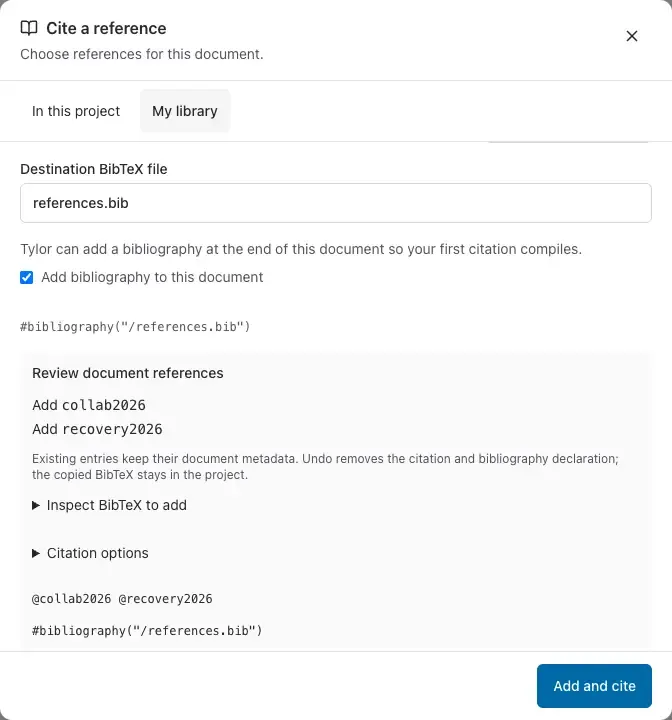
A matching DOI, or identical fields apart from the citation key, reuses the existing destination
entry and keeps its document metadata. A conflicting key for a different work gets a free suffix
such as _2; the preview shows the exact key that the citation will use. No existing entry is
rewritten. The document receives an ordinary editable snapshot and remains independent of your
private library, including when shared or exported. Undo removes the citation and any
bibliography declaration added with it in one step, keeping the copied BibTeX entries for reuse.
Automatic setup is offered only when you are editing the compile target and it has no existing
bibliography, import or include. The preview shows the declaration, such as
#bibliography("/references.bib"); the leading slash refers to the project root.
For templates, included chapters or computed bibliography setup, Tylor leaves that configuration
to you. Use Document → Insert bibliography… or your template’s bibliography option, then
acknowledge the setup notice. A missing .bib file is created only when you save the reviewed addition.
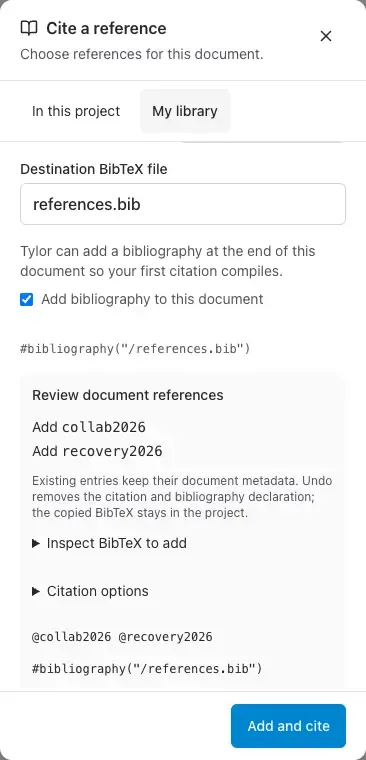
This flow requires a server connection and write access. It copies into UTF-8 text BibTeX files;
Hayagriva conversion and binary destinations are not supported. Linked crossref/xdata entries
are blocked: export them with their dependencies and upload the complete bibliography instead.
The destination must parse without repeated fields or duplicate keys. Each addition is limited to
256 KiB and the resulting file to 5 MiB. Review unusual entry types and metadata warnings before
compiling. Existing project reference search remains available offline.
Groups and keywords from your BibTeX appear in reference details. Zotero account synchronization is not available yet. Publisher-URL lookup is optional and must be enabled by the server administrator.
Optional project-copy formatting and reviewed updates from library metadata to existing document snapshots remain planned. Updating My library never changes existing documents.
Connection interruptions
Section titled “Connection interruptions”Browsing, previewing and saving My library require connectivity. Before saving, Tylor stores the import request on this device. If the connection fails or the response is lost, reopen My library, choose Resume saved import, then Retry saved import. Retrying the same request cannot import it twice. You can also Download pending BibTeX to keep a copy. Resume that request before starting another import. Do not clear browser data while an import is awaiting confirmation.
Project bibliography files and existing citations continue to work through the normal offline project workflow. Signing out or switching accounts does not expose another account’s library.
For interrupted Add and cite operations, use Saved bibliography requests in the My library panel or in Account menu → My library. Retry saved request confirms the original save; it never inserts a citation automatically. After confirmation, select the reference again and review its reuse. A confirmed conflict can be dismissed before reviewing against current files. An uncertain attempted request must be retried before dismissal. Download proposed BibTeX remains available even if document access was lost. Dismissing a receipt does not delete its saved bibliography entries.
While a guarded bibliography request is awaiting confirmation, typing remains saved on this device and document sync waits. Resolve the saved request to resume sync. A completed copy is recognized as your own change and should not produce an “edited elsewhere” warning. A real later edit from another tab, device or the CLI can still require a reload or create a History checkpoint.
Sync a local file with the CLI
Section titled “Sync a local file with the CLI”Requires tylor-cli 0.5.0 and a backend with the library checkout and DOI endpoints.
First connect the CLI. Preview an existing file:
tylor library import papers.bib --json# Select the new records and replacements you reviewed:tylor library import papers.bib --keys Bush2013,Mosig2019tylor library import papers.bib --applyWithout --keys, initial import selects only new records. Duplicate DOI identities cannot be
selected; resolve them in a reviewed copy rather than deleting intentional poster/preprint listings.
--apply uses the selection from the saved preview and refuses if the local file changed.
To start from My library, download to a new filename:
tylor library pull references.bib# Edit references.bib with your editor or bibtex-tidy, then:tylor library push references.bib --jsontylor library push references.bib --applyKeep the adjacent .tylor-library.json file. It contains the server/account identity, record
baselines and saved review or pending request, without credentials. Treat it as private library data.
Push selects new records and local changes that do not conflict with the baseline. Concurrent edits
to the same record are reported as conflicts. No command deletes missing entries or modifies document
snapshots. Your local BibTeX formatting, comments and custom fields remain untouched.
Pull currently creates a fresh export; it does not merge remote changes into an edited local file. Use another filename to inspect remote changes and merge deliberately. Citation-key renames are not tracked as renames: the old library record remains. Sync input is limited to 5 MiB even if a full library export is larger. Offline editing works; preview, pull and apply require connectivity.
After a connection failure, repeat --apply: it retries the saved request, even if you edited the
local file afterward. Run a new preview to sync those later edits. Do not delete the sidecar while
an operation is awaiting a receipt. Run one CLI process per file; after a killed process, remove its
.lock file only once you have verified that process is no longer running.
To retrieve BibTeX without adding anything:
tylor library doi '10.1145/3131365.3131384' --jsonThe result contains source.text and an import preview. Review it, save the BibTeX to a file, and
use library import to add it. Existing citations in documents remain independent.