
Git integration
Choose the right Git workflow
Section titled “Choose the right Git workflow”| Starting point | Use |
|---|---|
| Your paper is already in Tylor | Publish to Git in the editor, with a new empty repository |
| Your source is already in a repository | From Git on the dashboard |
| You want an archive of a whole research or teaching folder | The folder’s Backups… action, then its optional Git destination |
Project Git sync is useful when a coauthor uses a local editor, a lab keeps source in Git, or a document needs to travel with a code repository. It synchronizes project files, not all account data.
Publish the paper you are writing
Section titled “Publish the paper you are writing”- Create an empty repository at your Git host. For initial publication, do not initialize it with a README or other files.
- In Tylor, open Account → Git credentials and add a token with write access to that host/repository.
- Open your paper and select the Git branch icon in the header, titled Publish to Git.
- Enter the HTTPS repository URL and branch. Use a subdirectory only if you intentionally want the document under a path inside the repository.
- Select the saved credential, or use the access-token field if appropriate, and link the repository.
- Enter a meaningful commit message, author name, and author email, then choose Commit & push.
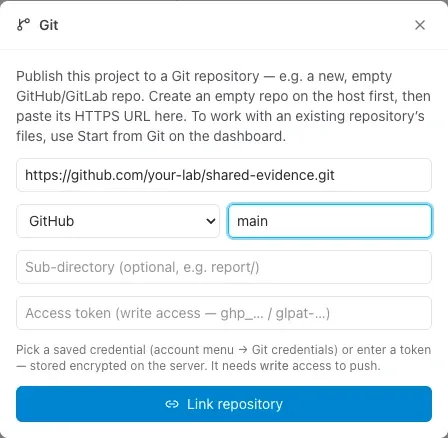
The screenshot shows setup with an example URL; it is not a repository to connect to. Use your own destination. Keep tokens in the credential controls, never embedded in the URL or your Typst source.
For the sample paper, a useful message would be Clarify the two-pass review protocol. Wait for Tylor to confirm the push and inspect the destination repository.
Pull and push during revisions
Section titled “Pull and push during revisions”Wait for pending edits to sync before either operation. Tylor stops browser Git operations when queued work remains because the server must have the saved files being synchronized.
Pull replaces project files with the remote branch after preserving a server History checkpoint. Read the confirmation and protect any work you need before proceeding. After a pull, follow any update notice in open editing sessions and inspect the compiled paper.
Commit & push sends your saved project files. If the remote changed since the last sync, inspect and reconcile those changes before retrying. Do not bypass that situation with force push.
Keep a separate submission record
Section titled “Keep a separate submission record”A Git commit records a source revision. A submission snapshot preserves the exact captured PDF and source archive that left the team. Use both when your workflow needs both records.
Project sync does not back up sharing, review records, account credentials, or the whole font/package library. For a set of papers, reports, or revision sheets, use the folder archive workflow and check its capture scope.