
Submission snapshots and folder backups
Choose the record you need
Section titled “Choose the record you need”| Need | Use |
|---|---|
| Undo a recent typing mistake | Editor Undo |
| Compare manuscript revisions | History checkpoint |
| Give someone a readable file | PDF download |
| Preserve the exact paper or report sent out | Submission snapshot |
| Preserve a set of projects and nested folders | Folder backup |
| Synchronize editable project files with a repository | Project Git sync |
Freeze a paper, report, or revision sheet
Section titled “Freeze a paper, report, or revision sheet”Open the arrow beside PDF, then Submission snapshots…. Enter a version name and choose Freeze submission.
Good names identify an event: Coauthor review v1, Minutes approved — September, or Fractions — learner version 2026–2027. “Final” becomes ambiguous as soon as another revision arrives.
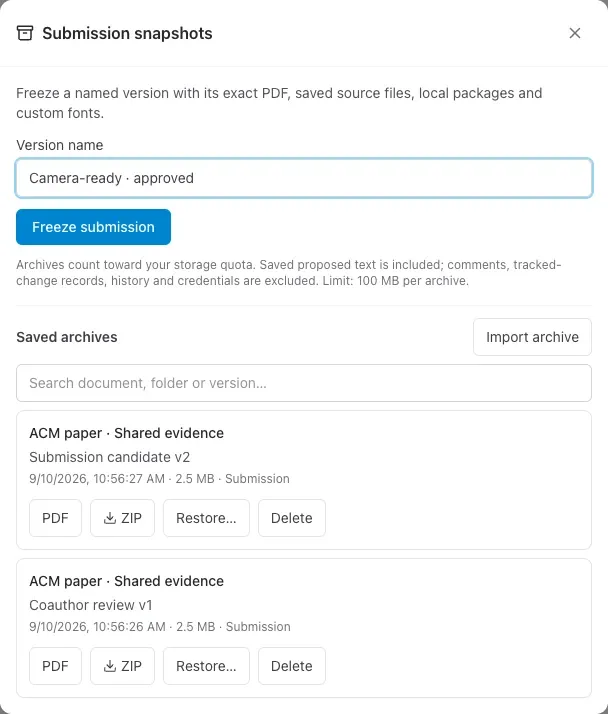
The archive contains the exact compiled PDF, captured source files, local package dependencies, and captured custom fonts. Later edits to the source project do not change the archive.
Saved proposed text is included, but comments, suggestion tracking records, history, sharing, and credentials are not. Review suggestions before freezing a final version. Each archive counts toward your storage quota and has a 100 MB size limit.
Download PDF to inspect the frozen document and ZIP for an independent copy of the archive.
Restore without overwriting the working draft
Section titled “Restore without overwriting the working draft”Choose Restore… on an archive. Review the document, folder, package, and font counts, then choose Restore as new copy when you want to proceed.
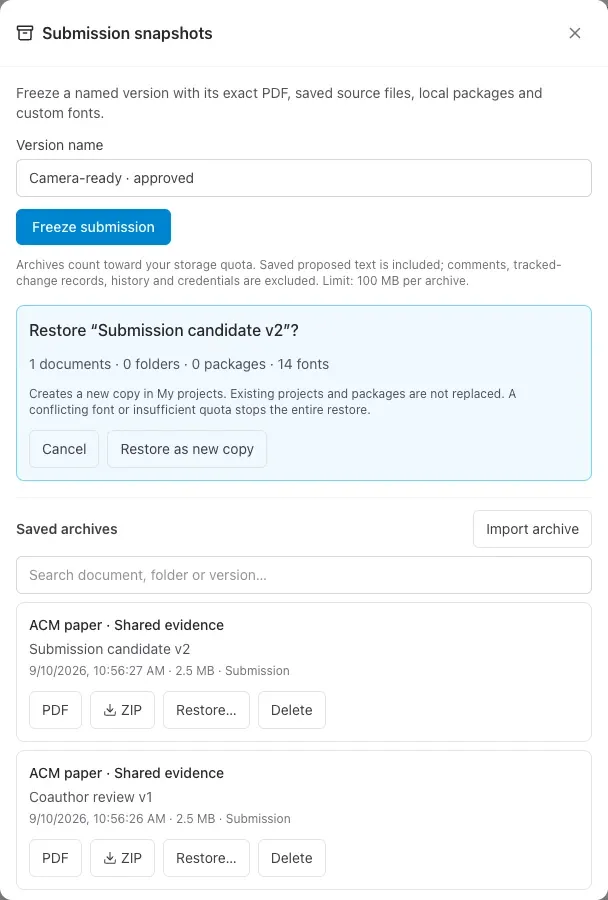
Restoration creates new owned projects and folders. It does not replace the working draft or revive the old sharing and credentials. A conflicting font or insufficient storage stops the restore rather than leaving a partial copy.
Use this when revisiting a submitted paper, preparing a revision from last year’s revision sheet, or checking which source produced an approved report.
Back up a research or teaching folder
Section titled “Back up a research or teaching folder”Open a folder’s menu on the dashboard and choose Backups…. Give the backup a name and choose Back up now. It captures owned documents and nested folders with their local packages and your custom font library. Confirm the scope before relying on a shared folder as a complete backup.
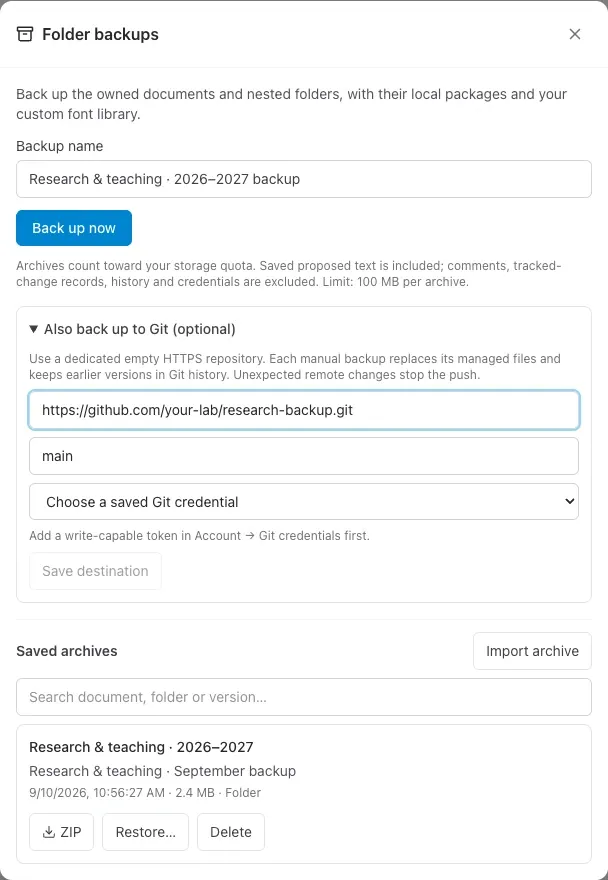
You can optionally connect a dedicated empty Git repository in the folder backup dialog. The archive is saved first; if sending it to Git fails, the saved archive remains available to download or retry.
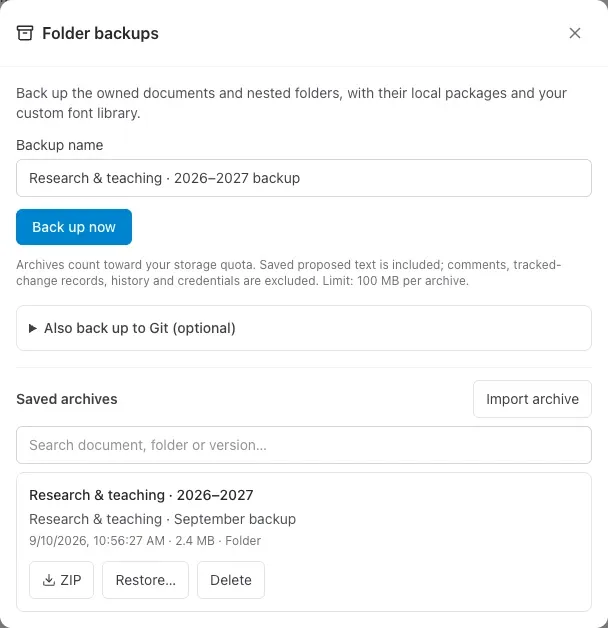
Expand Also back up to Git (optional) if you need an additional copy in a repository. The example below shows setup fields only; replace the example URL with your own empty repository and choose a saved write-capable credential.
Find your archives later
Section titled “Find your archives later”Open Account → Snapshots & backups to search by document, folder, or version name. Archives survive deletion of their source project until you delete the archives themselves.
Keep an off-site ZIP of important submissions or approved teaching material. A backup that exists only in the same account is not an independent copy.