Keyboard shortcuts
Use Cmd on macOS and Ctrl on Windows or Linux where the table says Mod. Editor shortcuts require focus in the source editor. Browser and operating-system shortcuts can take precedence.
Editing
Section titled “Editing”| Action | Shortcut |
|---|---|
| Undo | Mod+Z |
| Redo | Mod+Shift+Z |
| Bold selection | Mod+B |
| Italic selection | Mod+I |
| Toggle raw text | Mod+` |
| Toggle line comment | Mod+/ |
| Indent / unindent | Tab / Shift+Tab |
| Show completions | Ctrl+Space |
| Find in the current file | Mod+F |
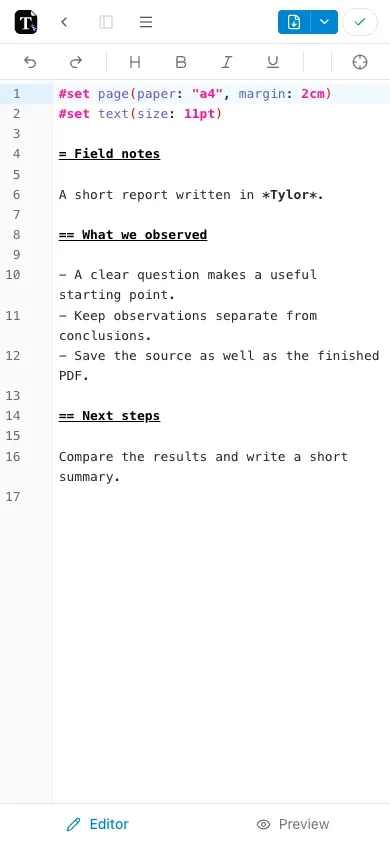
You can also use Edit → Undo, Redo, and Find & replace…. The formatting toolbar exposes common formatting actions without shortcuts.
Navigation and compilation
Section titled “Navigation and compilation”| Action | Shortcut |
|---|---|
| Open or close the command palette | Mod+K |
| Search across project files | Mod+Shift+F |
| Compile now | Mod+Enter or Mod+S |
| Next comment | Mod+Shift+Down |
| Previous comment | Mod+Shift+Up |
Mouse and touch
Section titled “Mouse and touch”- Double-click the preview to jump to the matching source position.
- Cmd/Ctrl-click a source reference to jump to its bibliography entry or label definition when available.
- On mobile, use the Editor and Preview tabs. Pinch the preview to zoom.
Comment navigation requires review comments to be available for the project. For the interface around these shortcuts, see editor and preview.