
Review agent changes
An agent can either update project files directly or submit tracked suggestions. Choose the mode that fits the task. For changes you want to approve individually, ask it to leave tracked suggestions pending in Tylor.
Review suggestions in the browser
Section titled “Review suggestions in the browser”Open the project and its Changes panel. Inspect each insertion or deletion in context, then accept or reject it. The same review controls apply to proposals created through tylor suggest and through the editor.
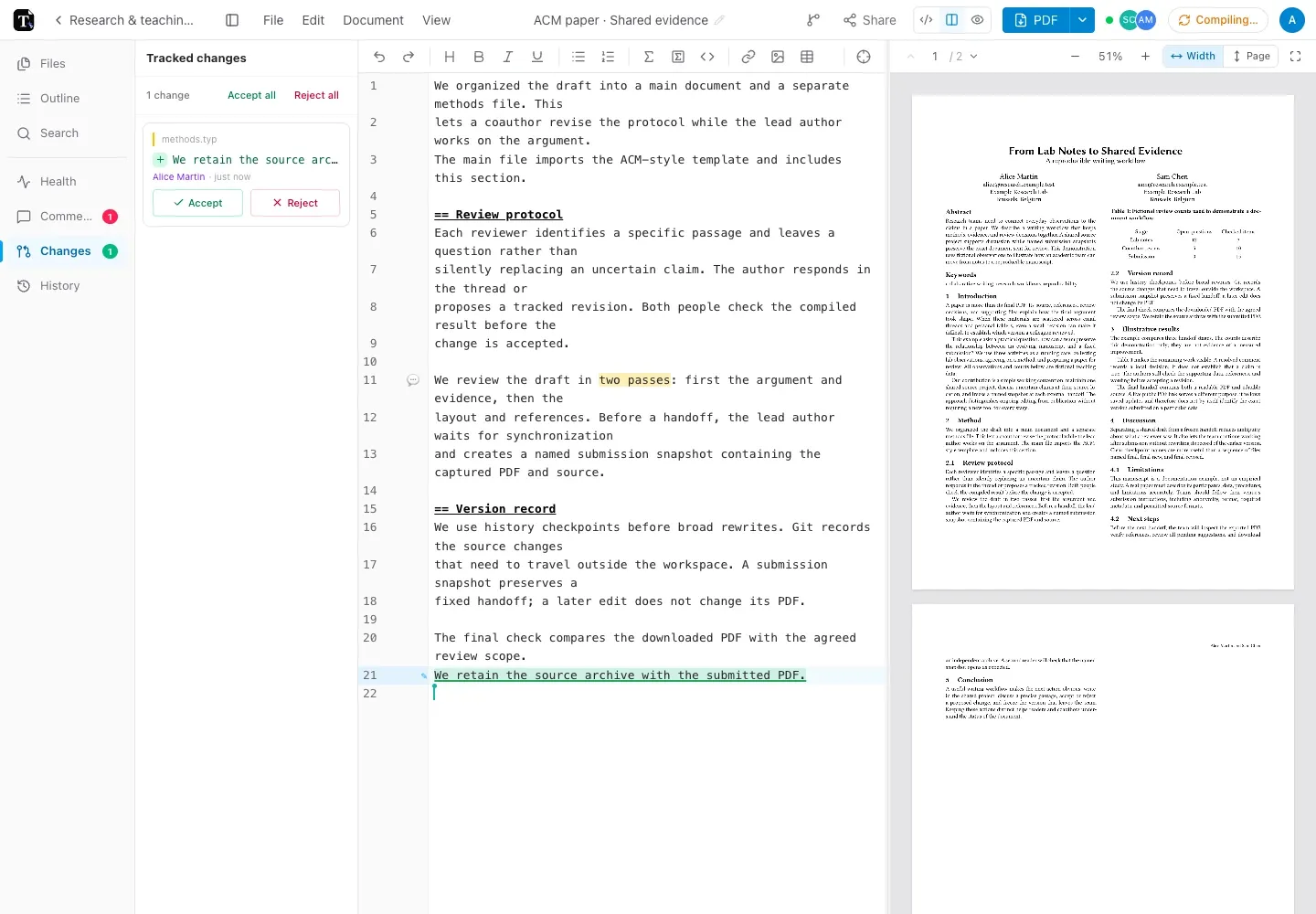
The source buffer and preview contain the proposed result. Pending suggestions already appear in normal PDF exports. Resolve them before exporting a version that should contain only approved wording. Suggestions created by the CLI are attributed to the account that owns the API key, not to a separate agent collaborator.
After you decide, ask the agent to read the current project again. It should continue from your accepted and rejected changes.
Understand direct edits
Section titled “Understand direct edits”A normal CLI push updates saved project files; it does not put every edit into a pending review queue. Use History to inspect changes and keep a checkpoint before a broad operation.
A useful request is:
Create a History checkpoint before changing the layout.Update only the template file, compile, and inspect the PDF.Tell me which files changed and leave the document unpublished.Coordinate with browser edits
Section titled “Coordinate with browser edits”Wait for your browser changes to sync before the agent pulls. The current CLI uses a checkout baseline: it compares the files being changed with the versions it originally fetched. If a target file changed in the meantime, the guarded write stops with a conflict instead of replacing the newer version.
That is a file-level check, not automatic merging of everyone’s intent. On conflict, the agent should keep its work, pull a fresh copy into another directory, and reapply only the intended edits. File renames, deletions, and History restores need coordination with other editors.
These protections require a matching current CLI and backend. Update older installations before relying on concurrent editing.
Check the resulting document
Section titled “Check the resulting document”Ask the agent to compile and inspect rendered pages, then review the result in Tylor yourself. Compilation verifies that Typst can produce the document; it does not verify the content or ensure that every page looks right.
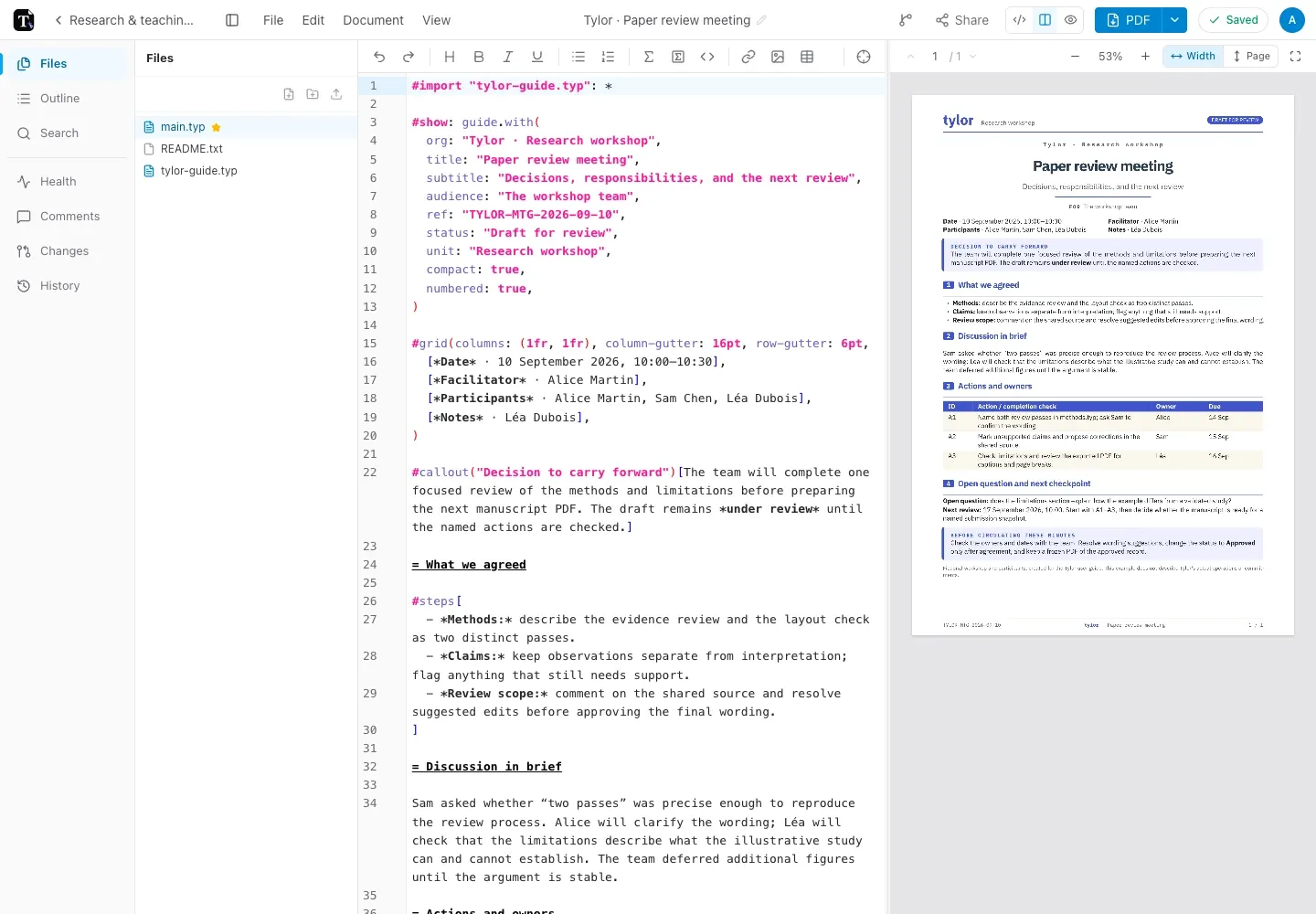
For a fixed record, request a named submission snapshot after reviewing the changes. A History checkpoint, a downloaded PDF, and a frozen submission archive serve different purposes.
The CLI reference explains commands and credentials; comments and suggestions covers the editor’s review controls.