
Quick start
This quick start introduces the browser controls. To work through your agent, start with connect your agent.
1. Open your workspace
Section titled “1. Open your workspace”Open Tylor and sign in. If you are using an installation without sign-in configured, it opens a local workspace instead.
On the dashboard, choose New document → Empty document. Click the document title in the editor header to give it a name, such as Field notes.
2. Try the editor and preview
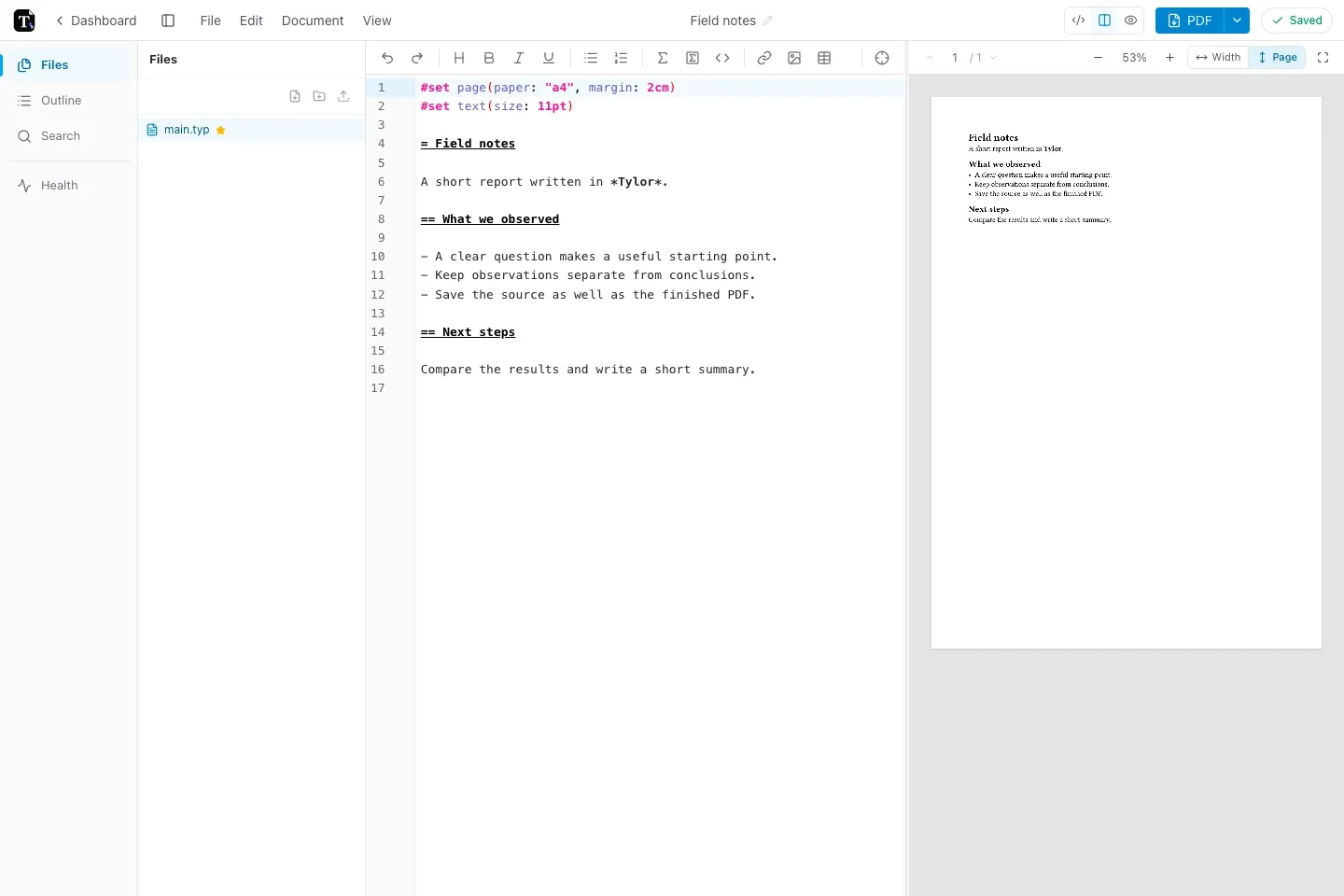
Section titled “2. Try the editor and preview”Replace the text in main.typ with:
#set page(paper: "a4", margin: 2cm)#set text(size: 11pt)
= Field notes
A short report written in *Tylor*.
== What we observed
- A clear question makes a useful starting point.- Keep observations separate from conclusions.- Save the source as well as the finished PDF.
== Next steps
Compare the results and write a short summary.
The preview updates as you type. The = characters create headings; single * characters mark bold text in Typst.
3. Check the result
Section titled “3. Check the result”Use View → Fit to page to see a whole page, or Fit to width for easier reading. Double-click a place in the preview to jump to the corresponding source.
If the preview stops updating, check the document’s diagnostics. A syntax error can leave the last successful preview visible until you fix it.
4. Download your document
Section titled “4. Download your document”Choose File → Export PDF. Keep the downloaded PDF for reading or sharing.
To keep an editable backup too, choose File → Download project…. Use Source files only to reimport the files into Tylor, or Build bundle to include local packages and instructions for compiling locally. A PDF does not contain your editable project files.
5. Know where your work lives
Section titled “5. Know where your work lives”Edits save automatically. In account mode, check that pending changes have synced before switching devices. In local mode, your project stays in this browser; export a ZIP before clearing browser data.
Continue with core concepts or editor and preview.