
Dashboard and folders
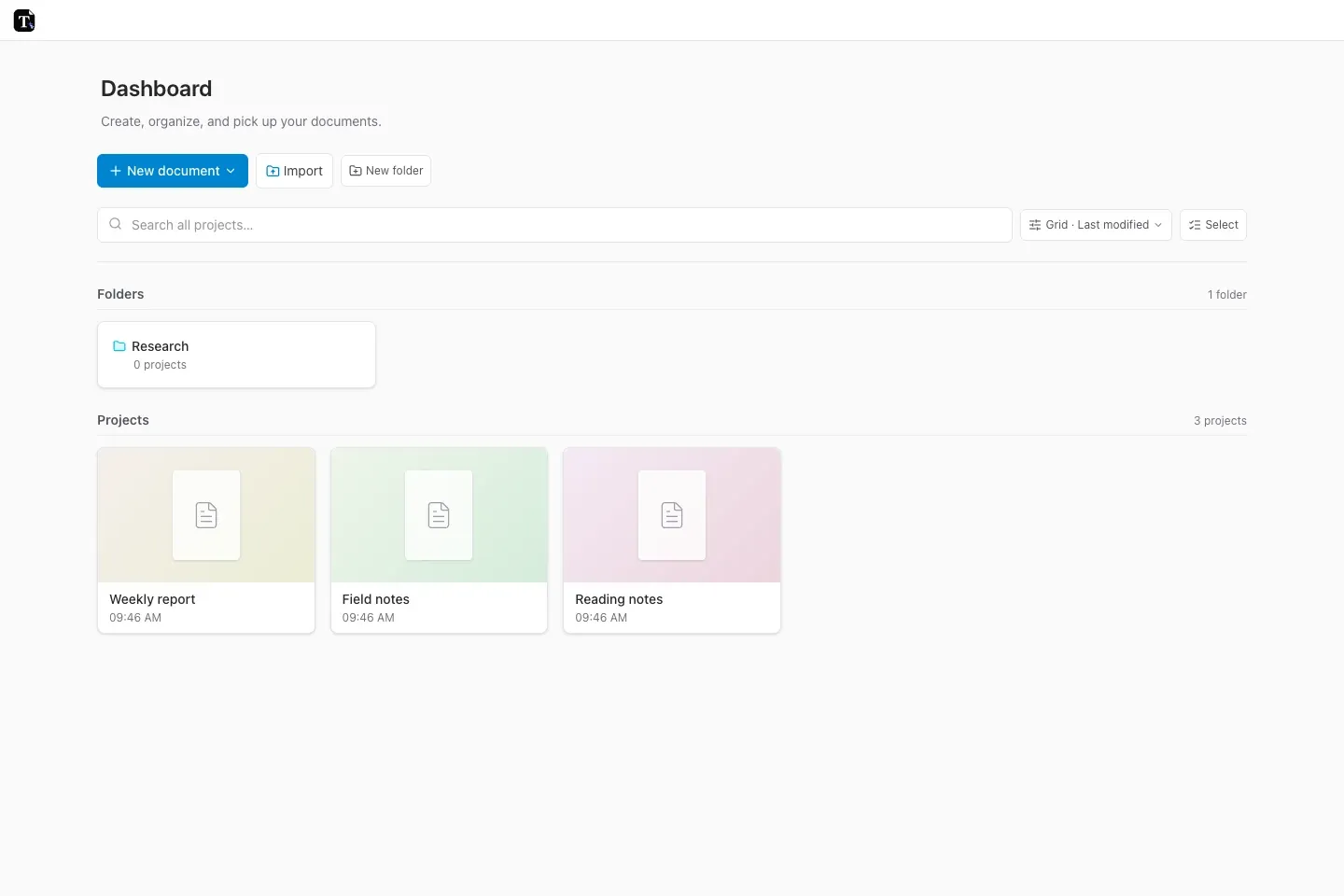
The dashboard is where you create and organize documents. Open a document card to return to its editor.
Create and find documents
Section titled “Create and find documents”Use New document for an empty document, a template, or the other available creation options. Search by name when your workspace grows.
Folders group projects. Open a folder to see its contents and use the breadcrumb to return to a parent folder. Project actions let you rename, move, or delete a document according to your permissions. You can also drag projects into folders.
Organize a research and teaching workspace
Section titled “Organize a research and teaching workspace”The sample folder holds an ACM manuscript, meeting minutes, and a revision sheet. Use names that identify the document and period, so you can find the sheet for a particular topic or the report from a particular meeting.
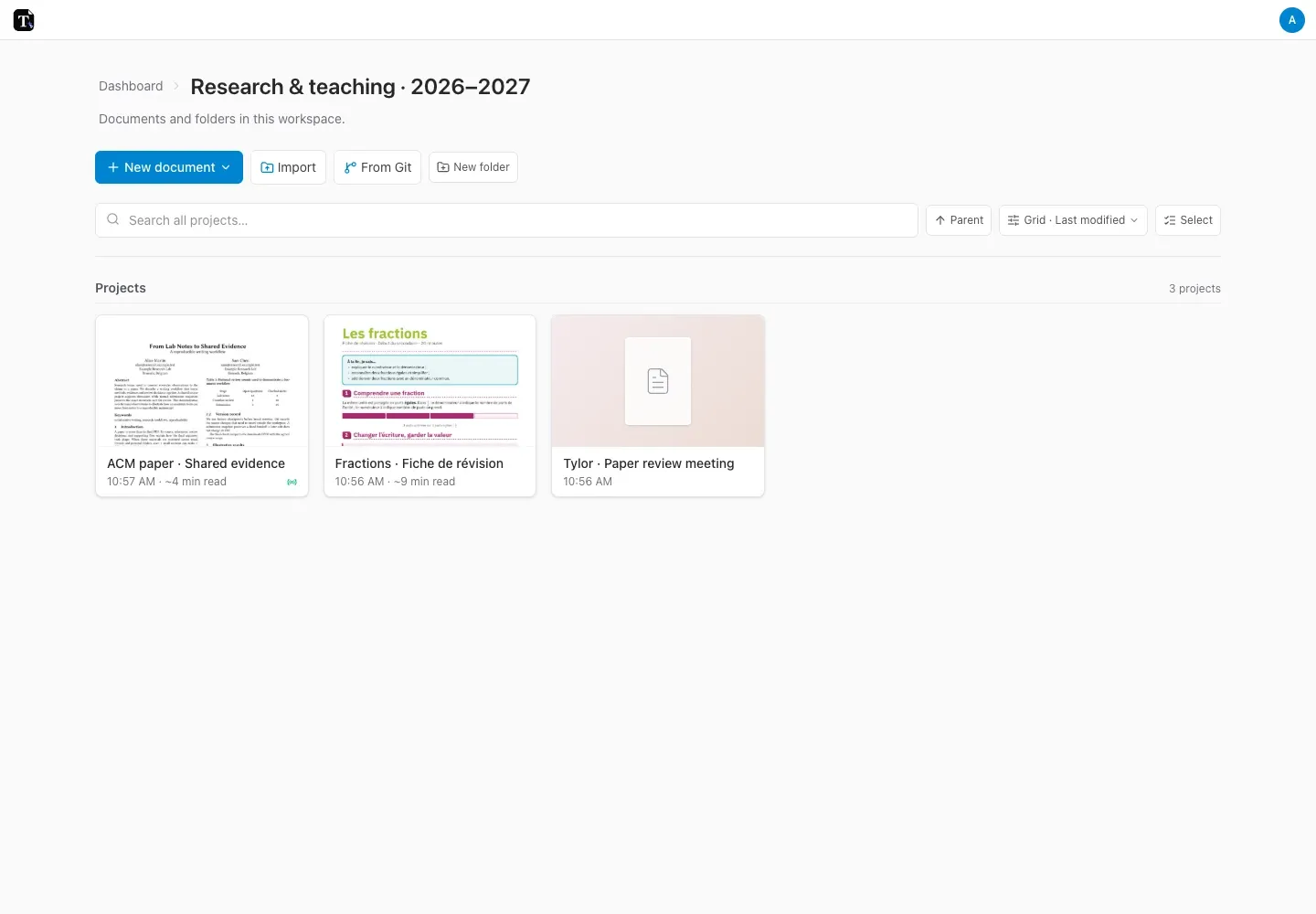
You can also ask an agent to find or organize projects through the Tylor skill and CLI.
Keep useful projects close
Section titled “Keep useful projects close”Star frequently used projects or folders. Recent documents are optional: enable them in Preferences if you want that section on the dashboard.
Published package source projects appear with local packages instead of the normal project grid. If a document seems to disappear after publishing it as a package, look there.
Global settings
Section titled “Global settings”The account menu contains Preferences, Local packages, Fonts, and account tools. Server-backed workspaces also offer tools such as Git credentials and API keys when available.
In account mode, use Trash to review deleted items before permanently removing them. See history and recovery for the difference between restoring a deleted project and restoring an earlier version.