
Presenting and discussing documents
Open a document and choose Present in the header, or View → Present document…. Check the preview target, choose Presentation · slides or Discussion · paper, then start at the current preview page or beginning. Select Open presenter console.
The console holds the last valid compiled version. Other edits do not move your presentation. If compilation fails, you can keep presenting that captured version.
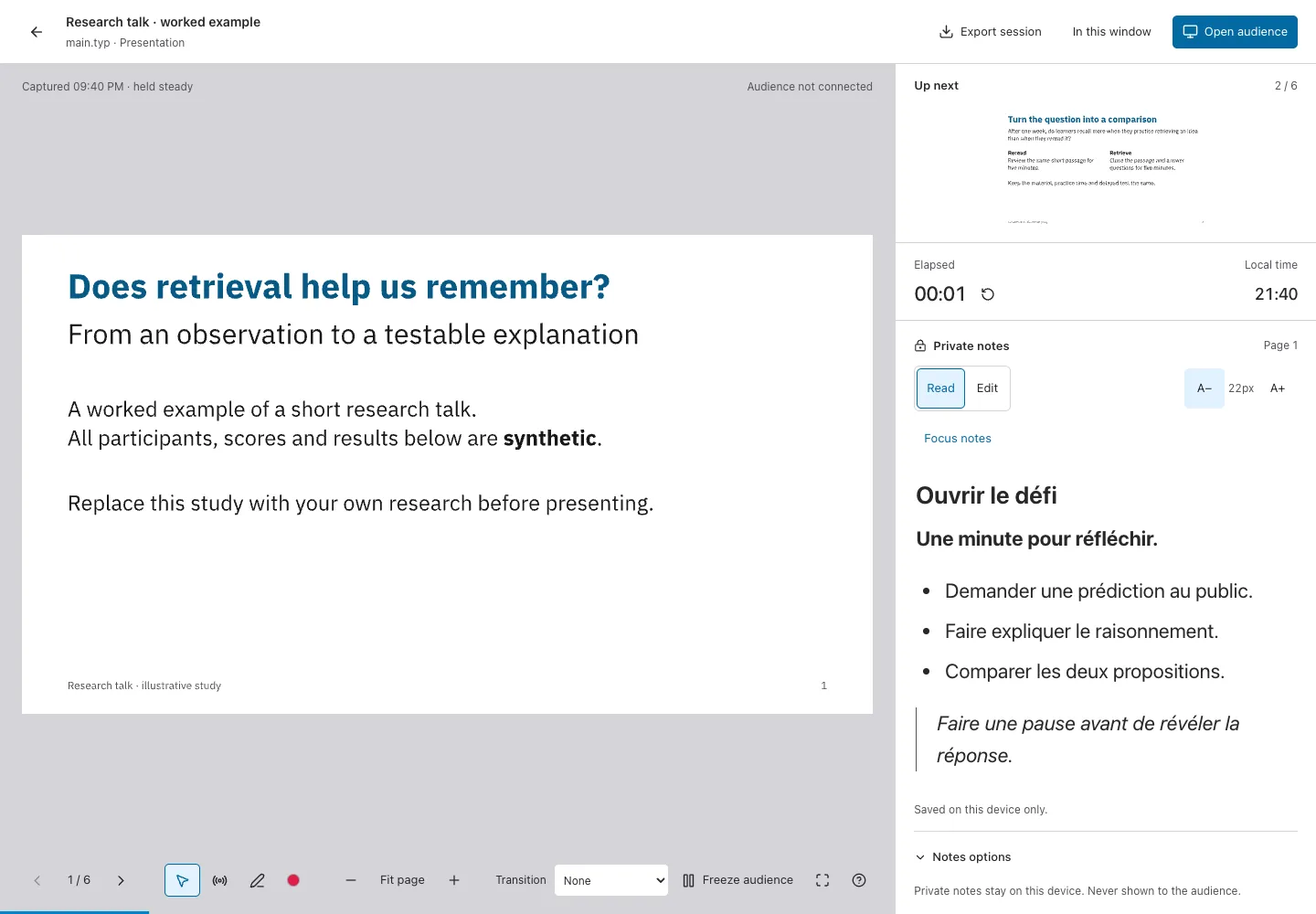
Choose what the audience sees
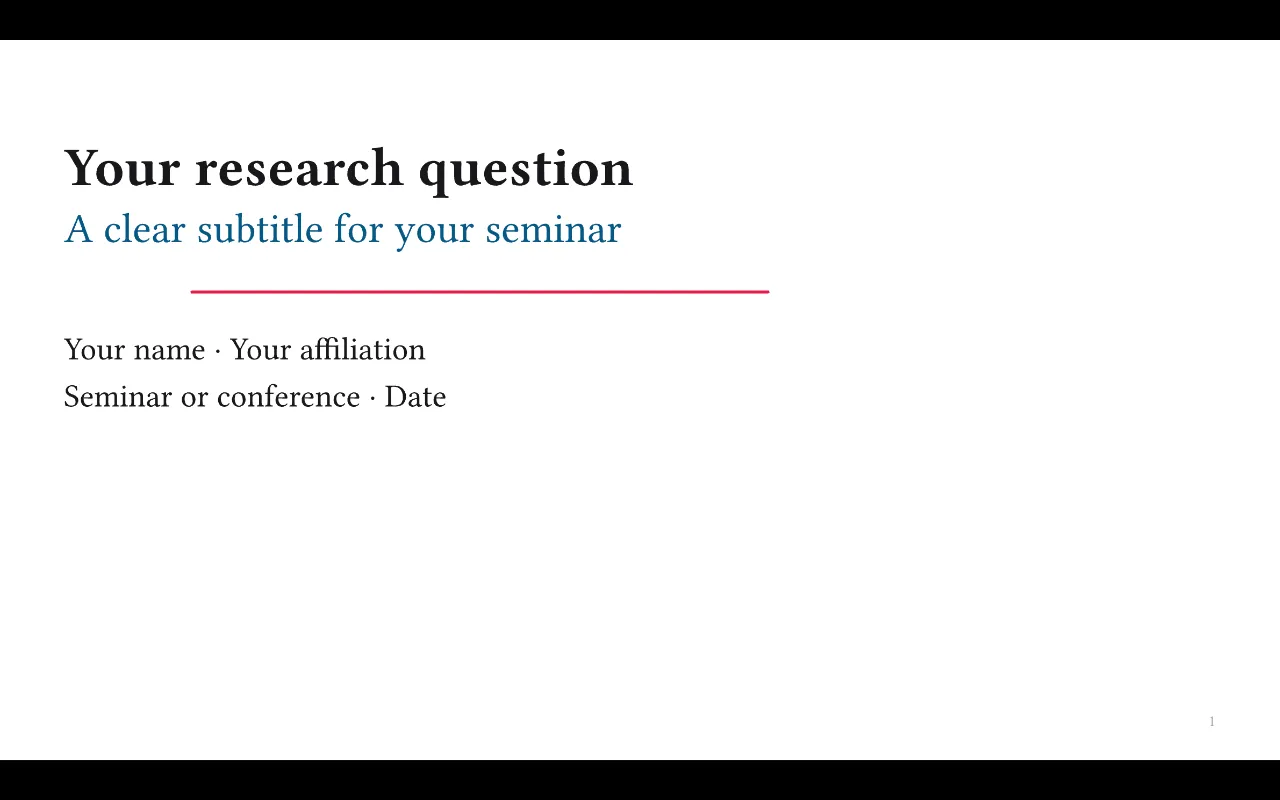
Section titled “Choose what the audience sees”Open audience opens a separate window on this computer. Move it to your audience display and choose Fullscreen there. It shows the document and temporary pointer/drawings. The next page, notes, clock and timer stay in your console. Share the audience window when screen sharing; sharing your whole desktop can reveal your console.
If the browser blocks the window, allow pop-ups and try again, or select Use this window. On desktop, In this window also presents in the existing window; Return to presenter restores the console. Fullscreen availability depends on your browser.
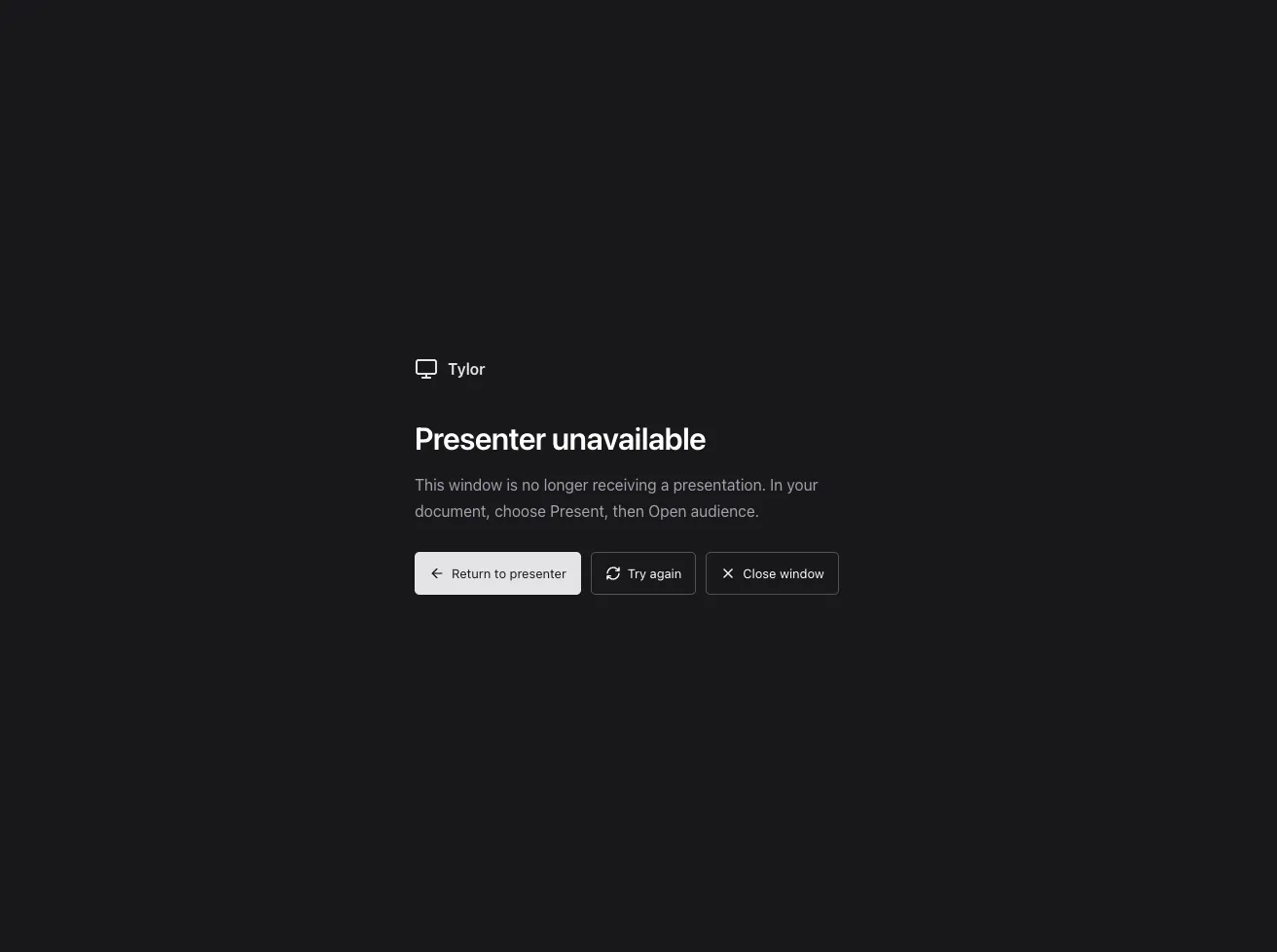
An audience window shows Connecting to presenter while waiting. If its presenter closes or no longer responds, Presenter unavailable explains how to reopen it; Return to presenter, Try again and Close window provide recovery actions when available. A disconnected live window keeps the last captured page. A frozen audience keeps its held page.
Pages redraw at the display’s pixel density when you resize, zoom or move the audience window between displays. Retina and 4K output use a larger canvas; extreme zoom can still look softer once the memory limit is reached. Narrow windows use a smaller limit to reduce memory use.
Freeze audience (B) holds the audience on the page you were showing, including its drawings and zoom. Browse other pages, edit your notes or prepare drawings privately in the console. Resume audience (B again) reveals your currently selected page and resumes live updates. The console shows the held page number so you know what the audience still sees.
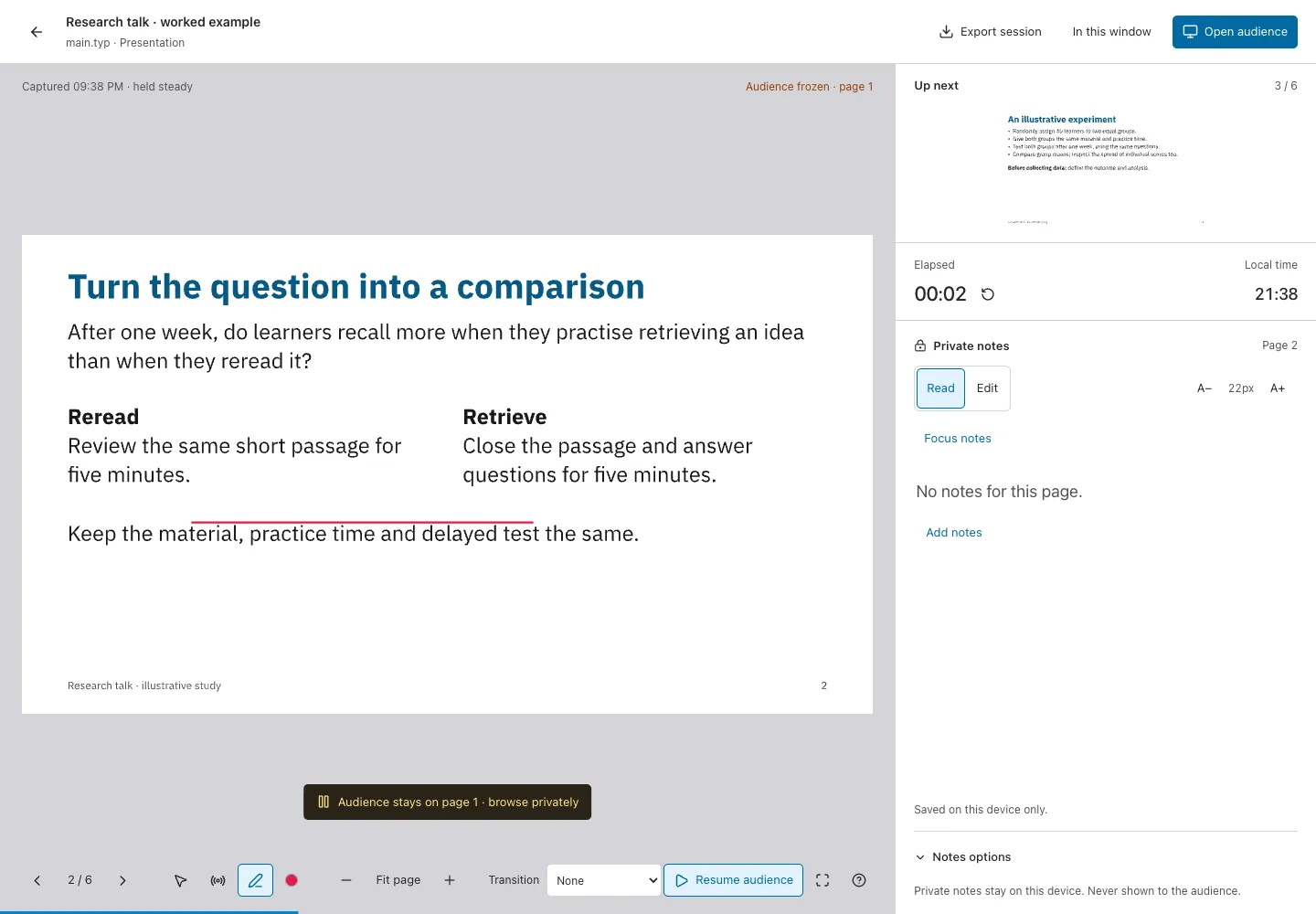
Freezing does not blank the screen. The held page survives an audience-window reload, reopening the window and Update document; resuming reveals your current captured version. In this window uses the same held output. The temporary laser pointer disappears when you freeze.
Choose a transition
Section titled “Choose a transition”Select Transition before opening the presenter console, or change it in the presenter toolbar. On phones, open Tools to find the selector.
- None (default): switch directly to the requested page.
- Fade: briefly dissolve between pages.
- Continuous flow: move the outgoing page up as the next page arrives from below. Going backward reverses the direction. Thumbnail jumps move directly to the chosen page.
- Slide sideways: push the current page left as the next arrives from the right; backward navigation reverses the push.
- Zoom through: gently scale and dissolve between pages for a sense of depth. Going backward reverses the scale direction.
- Reveal: uncover the next page from left to right over the current page, reversing when going back.
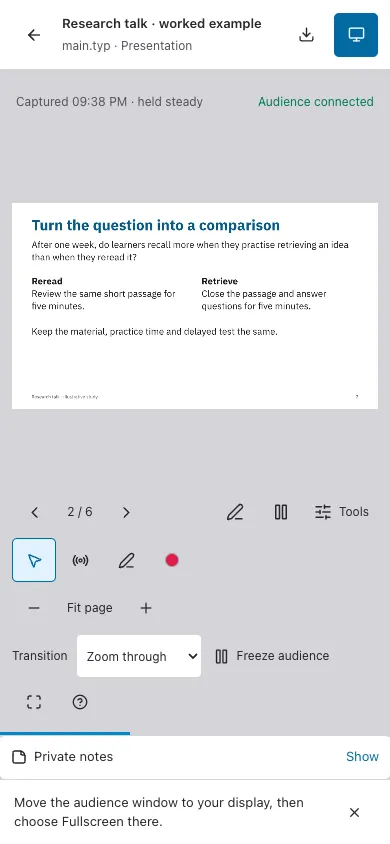
The choice lasts for this presentation and applies to the console, In this window and the separate audience window. Each window waits for its next page to render before animating; slower displays can start slightly later. Page arrows, keyboard navigation and notes still refer to the chosen page. Drawing waits until that page is ready and its transition finishes. The outgoing page keeps its own drawings; strokes never move onto another page.
Reduced-motion preferences switch pages without animation. Resizing, changing the captured document, or navigating from a zoomed view also skips the effect. Transitions work with any compiled document. They animate whole pages: they do not recreate Slipst’s within-page reveals, execute HTML, or animate individual text and figures. PDFs and saved session PDFs remain static pages with their final drawings.
Navigate and emphasize
Section titled “Navigate and emphasize”- Use the arrows, Space, Page Up/Down, Home/End, or click the page counter to choose a thumbnail.
- Clicking an unzoomed slide advances only with Navigate selected.
- Choose Laser pointer (L) or Pen (Shift+L). Ink stays with its page during the session.
- Ink options changes colour or clears this page/all pages. Drawings are temporary and never enter your Typst source, comments or ordinary PDF exports.
- Reset timer starts elapsed time again. Local time is displayed separately.
Shortcuts pause in note fields and dialogs. Escape leaves in-window presentation, stops a drawing tool, or offers to end the session. Browser fullscreen may consume the first Escape.
Discuss a paper
Section titled “Discuss a paper”Choose Discussion · paper at launch. Width fits the page width; Fit page restores the whole page. Use +/− or a two-finger pinch to zoom, and Navigate to drag a zoomed page. Choose Focus and drag a rectangle around a figure, equation or passage. The audience follows the same region, fitted to its window. Zoom is limited to 600%.
Discussion has no comment view or review actions. Return to the editor to work with comments.
Prepare notes in the editor
Section titled “Prepare notes in the editor”Choose View → Private speaker notes…, or PDF → My speaker notes…. The workspace shows the captured page beside its note. Use the arrows or enter a page number and choose Go. The workspace opens in Edit. Write Markdown headings, emphasis and lists, then choose Read to preview the formatted note. Text saves as you type, on your device first. Notes prepared beside an unchanged page appear in Present automatically. The preview target may differ from the file you are editing.
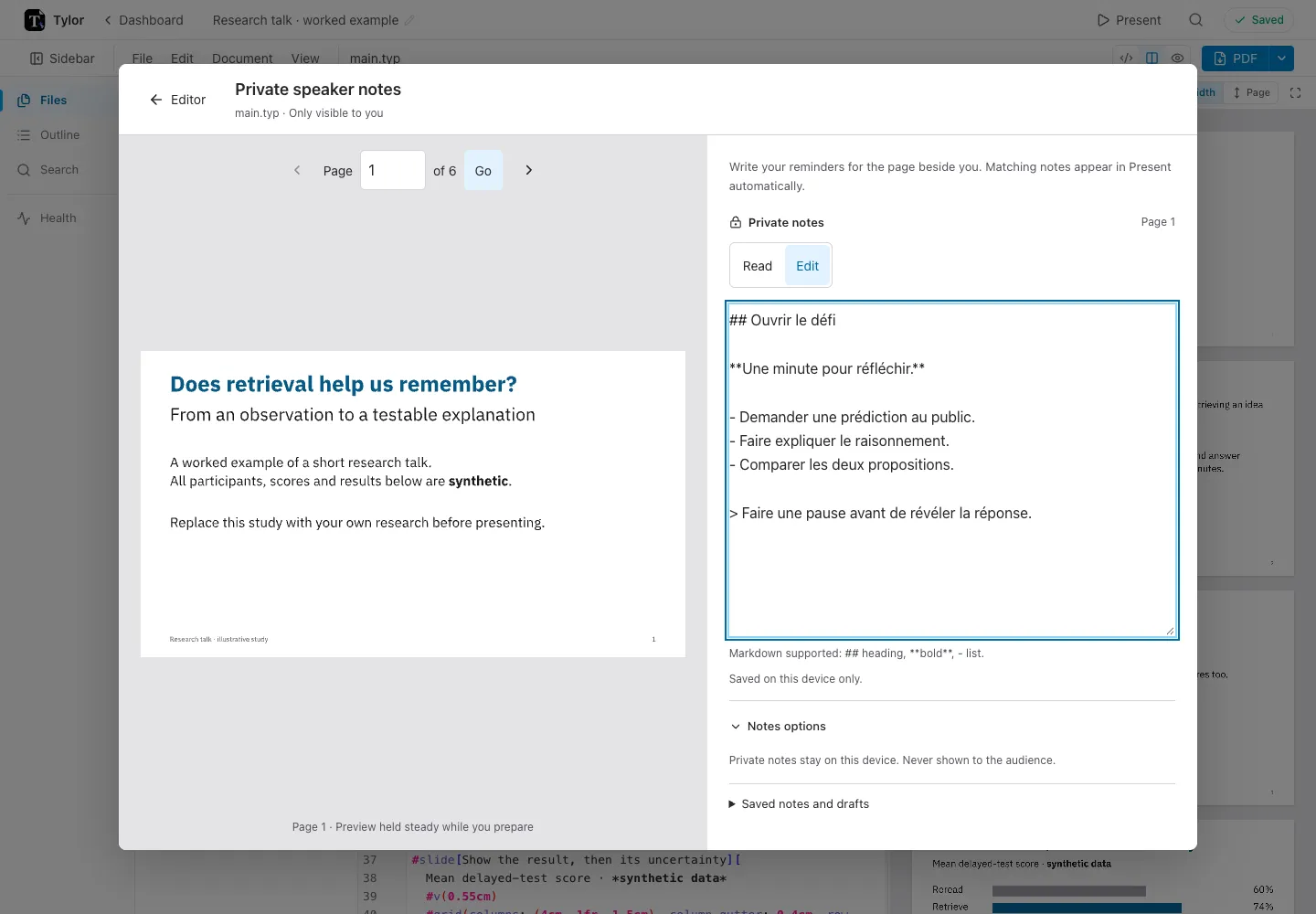
The preview stays steady while you write. Use latest preview adopts a newer valid compile; review earlier notes when the source or page output changes. Saved notes and drafts opens older notes for editing, with page and edit dates. The preview still shows the current capture.
Without a compiled preview, you can prepare page drafts. CLI-created drafts also need review: open Review prepared notes beside the captured page, check the text, then choose Use on this page. If that page already has text, confirm Replace note. The original prepared or earlier note is kept. Later edits to a draft must be adopted again. See the CLI notes instructions.
Read notes while presenting
Section titled “Read notes while presenting”The presenter opens Private notes in Read mode: Markdown headings, bold text, lists, quotes, tables and code are formatted for reading. Choose Edit to change the original Markdown, then Read to return. An empty page offers Add notes.
Use A− / A+ to adjust the reading size from 16 to 32px (22px by default). Your browser remembers this size across pages and presentations. On desktop, Focus notes gives the notes most of the window and hides the next-page thumbnail; the current slide and clocks remain visible. Restore slide layout returns to the usual arrangement. This affects your console only.
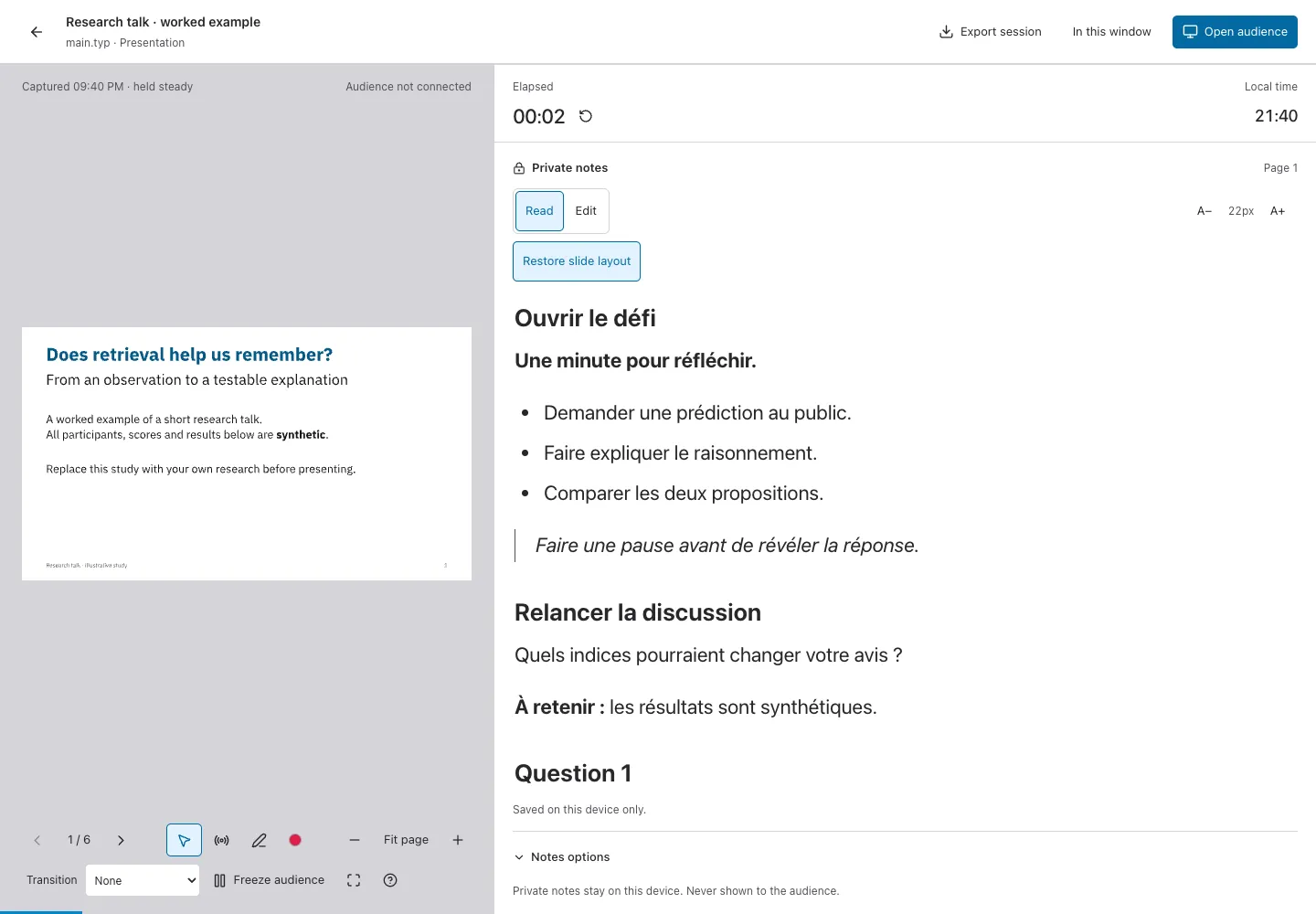
Long notes scroll within the reader. Click or Tab into it to use Space, Page Up/Down, Home/End and the up/down arrows to scroll without changing slides. Moving to another page starts its note at the top. Remote Markdown images display their alternative text without fetching the image; raw HTML stays visible as text. Only explicit HTTP, HTTPS and email links are clickable. Reading styles do not change note source or export formatting.
Keep private notes
Section titled “Keep private notes”Choose Edit in Private notes to type reminders. They belong to your account and this captured page; other project members, including the owner, cannot read them through Tylor. Signed-out notes are labelled Saved on this device only. Server notes save on this device before syncing. You can navigate after the local save finishes, even while offline. A failed local save keeps your draft visible and blocks leaving until you retry or explicitly discard it. Export first to retain the draft.
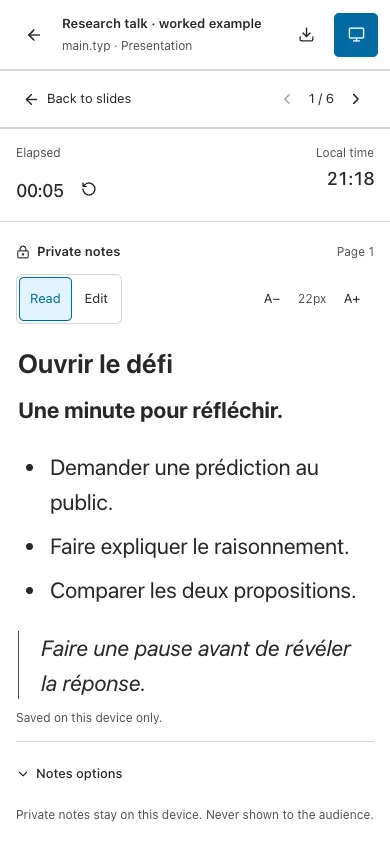
On a narrow screen, Private notes → Show opens a dedicated notes view with a compact timer and page arrows. Choose Back to slides to return. The slide toolbar keeps navigation, pen and audience visibility close at hand; Tools reveals the remaining controls.
Update document explicitly adopts the latest valid compile, returns to the first page and clears drawings. It preserves the timer and any frozen audience page. Changed source or page output moves older notes to Review prepared notes. Review the page before choosing Use on this page. Differences in browser rendering can also require review, even when the source looks unchanged.
If two devices edit the same note, Review conflicting private note shows both versions. Choose the server text or your text. The other version remains in the private recovery export on this device. Recovery JSON downloads your cached notes, recovery copies and current draft as JSON. Ordinary PDF/source downloads, personal copies, Git and folder archives exclude them.
Clearing a note saves an empty version so an old offline edit cannot silently bring it back. Permanent project deletion and account deletion remove server notes; already cached offline data cannot be remotely recalled. If access changes or the server lacks note support, the panel explains the problem; export your local notes and contact your installation administrator.
Export your private notes
Section titled “Export your private notes”Open Notes options in either the editor workspace or presenter to find these exports and Reload notes. A save failure also exposes Download recovery JSON beside the error:
- Download Markdown: all saved note text on this device, including drafts and older captures, with document/page labels. Markup in the notes is escaped rather than executed.
- Printable notes: a standalone HTML handout containing notes only, without slide images. Open it in a browser and choose Print to print or save as PDF. Drafts and captured revisions are labelled for review; outdated notes are not silently presented as current.
- Recovery JSON: cached note records, discarded conflict versions and the current draft. This is also the way to retain text after a local save failure. There is no automatic JSON import.
These files contain private text. Ordinary PDF/SVG, public PDF links, project/build ZIPs, personal copies, Git and submission/folder archives exclude speaker notes. Keep an explicit notes export alongside your own backup if you need one. Server database backups remain an administrative boundary.
End a session
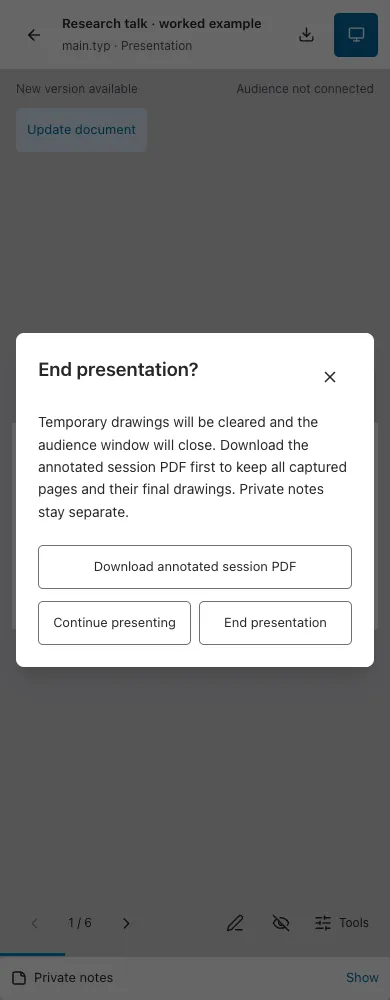
Section titled “End a session”Use the back arrow and confirm End presentation. This closes the audience window and clears temporary drawings; saved notes remain. The full-width Download annotated session PDF action lets you keep the drawings first. Below it, Continue presenting returns to the session and End presentation confirms the exit.
Named routes, saved focus regions, meeting records, remote audience following and native animation/media are not available in this version.
Presentation uses canvas pages, with a 64 MB artifact limit and bounded drawing storage. For accessible text reading or very large documents, use the source or an exported PDF.
Download the session with drawings
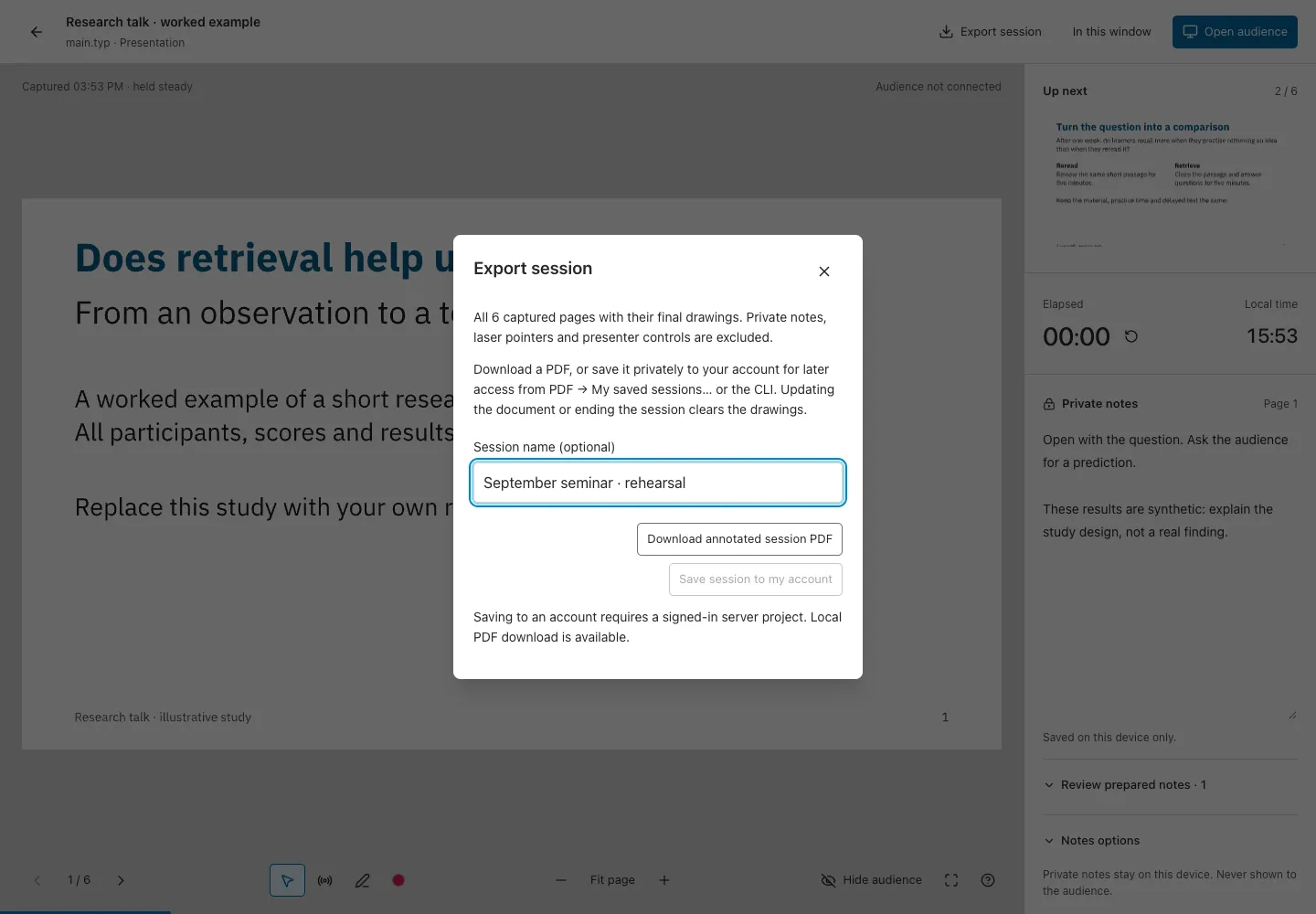
Section titled “Download the session with drawings”Choose Export session → Download annotated session PDF in the presenter header (the download icon on phones), or Download annotated session PDF when ending the presentation. All captured pages are included, in order, with the drawings present when you click Download. Pages without drawings are retained. Later source edits, zoom, laser pointers, audience freezing and private notes do not affect this PDF.
The export works in local mode. Pages are rendered at up to 144 dpi (at most four million pixels per page); drawings remain vector lines. Page text is rasterized, so use ordinary PDF export when you need selectable text. An export exceeding 64 MB of page images stops without downloading a partial document. Save the PDF before ending the session or updating the captured document, which clears drawings. This is the final visual state, not a replay of the talk.
To retrieve a session later, choose Export session → Save session to my account. Enter an optional Session name, such as “September seminar · rehearsal”; leaving it empty uses a readable presentation date and time. This explicitly stores the final PDF privately. It is saved on your device before syncing; if you are offline, reconnect and check the editor’s sync status before using the CLI. Saved session PDFs are limited to 32 MB and count against your own storage quota. Downloading alone does not upload anything.
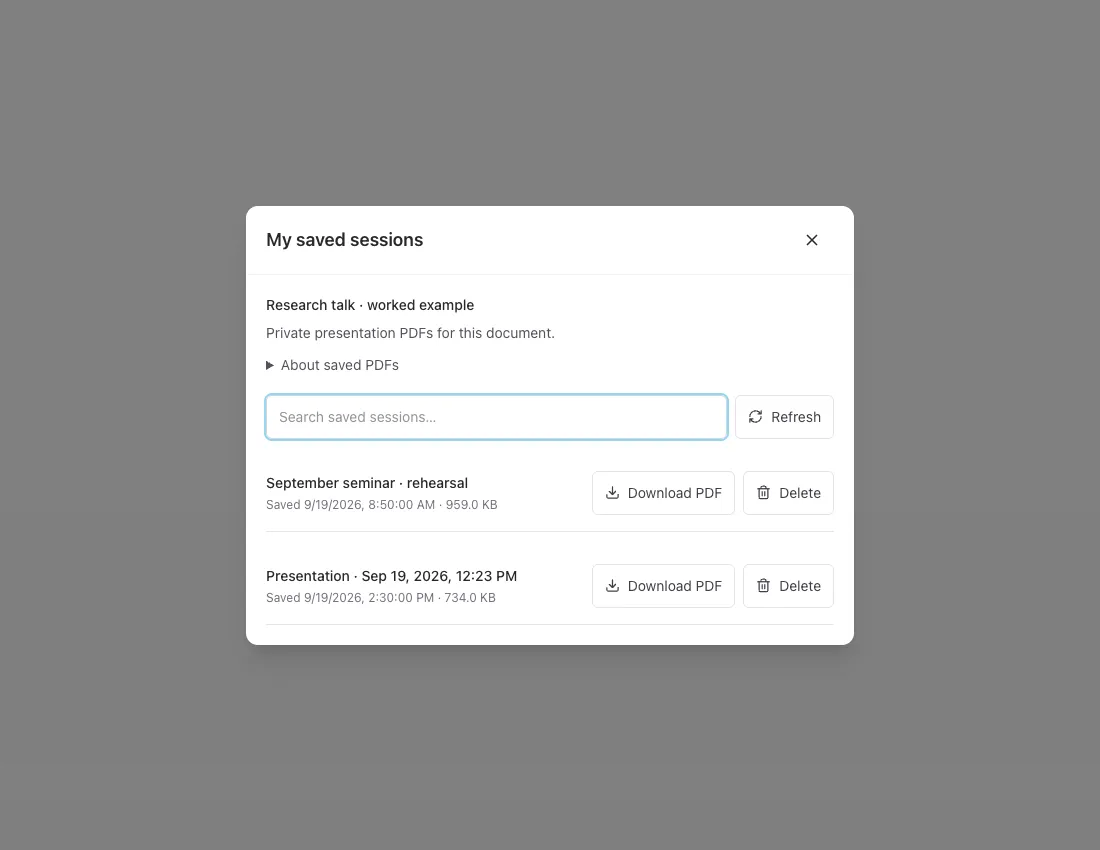
Back in the editor, open PDF → My saved sessions…. On phones, open the download menu in the toolbar. The list contains your private PDFs for this project, including sessions saved from the CLI. Older automatically generated names are also shown with a readable capture time. The Saved date records when the PDF reached your account. Search by name and choose Download PDF beside the date and file size. If a recent save is missing, wait for the editor’s sync status to show Saved, then choose Refresh. Listing and downloading require a connection and access to the original project. Saved PDFs preserve the final slides and drawings; they cannot reopen as editable sessions.
To remove an old session, choose Delete beside its PDF, then Delete permanently. This removes only that saved PDF from your account and frees its storage space. Your document, speaker notes and copies already downloaded are kept. Deletion requires a connection and cannot be undone; choose Cancel to keep the session. If deletion fails, the row remains visible with an error. Choose Refresh to check its current state before retrying.
Use tylor session list <projectId> to find the saved session from the terminal,
then tylor session download <projectId> <sessionId> <new.pdf>. The CLI can also generate
annotations without opening the browser; see CLI and API keys.