
Importing documents
Import an existing project
Section titled “Import an existing project”In the editor, choose File → Import (.typ, .md or .zip)…. The dashboard also has an Import button.
- Use a
.typfile for a single Typst source document. - Use Markdown to convert supported content into Typst.
- Use a project ZIP when your source needs multiple files or assets.
Conversion is a starting point. Inspect tables, equations, images, and references after importing; source formats do not always represent the same layout features.
Verify the imported document
Section titled “Verify the imported document”- Open the expected main file and check the project’s compile entry point.
- Confirm that referenced images and bibliography files are present.
- Check imports for local packages or public package versions.
- Resolve diagnostics, then inspect the compiled pages.
- Export and check a PDF before relying on it.
Word or LaTeX conversion options depend on server support. If the option is unavailable in your workspace, import Typst/Markdown or convert the document externally first.
Bring dependencies with you
Section titled “Bring dependencies with you”A source file can reference assets that were not included in the upload. Install the required fonts and local packages, or obtain a complete copy from the author.
For a shared Tylor document, Make a personal copy is designed to preserve its referenced local package snapshots.
Reimport a build bundle
Section titled “Reimport a build bundle”You can import the ZIP from File → Download project… → Build bundle directly, either from the dashboard or the editor’s File → Import action. Older Tylor build bundles are also recognized.
Tylor shows an Import build bundle review before creating the document:
- The original document file layout and main file are restored. The outer
document/folder, Makefile, and build README stay out of the editor’s file list. - Bundled local packages become independent This project snapshots. The imported document uses these versions, even if My library contains different code under the same name and version.
- Also add missing package versions to My library makes those versions available to other documents. Clear the checkbox to keep them only with the imported document. Existing library versions are kept unchanged.
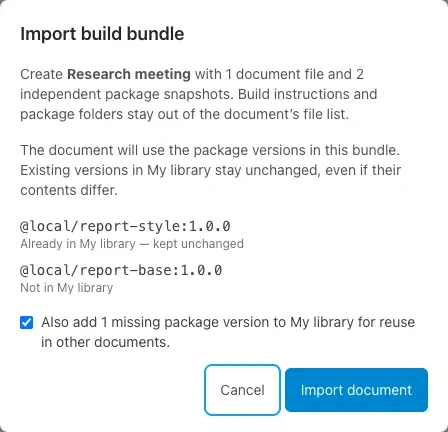
Choose Import document, then check the preview. Required font files already in the bundle are preserved; account fonts that were not exported still need to be uploaded separately. The import creates a new document and does not overwrite the original.
If you imported a build bundle before this support was added and see document/, packages/, and the Makefile in the file list, reimport the original ZIP to create a clean copy.