
Editor and preview
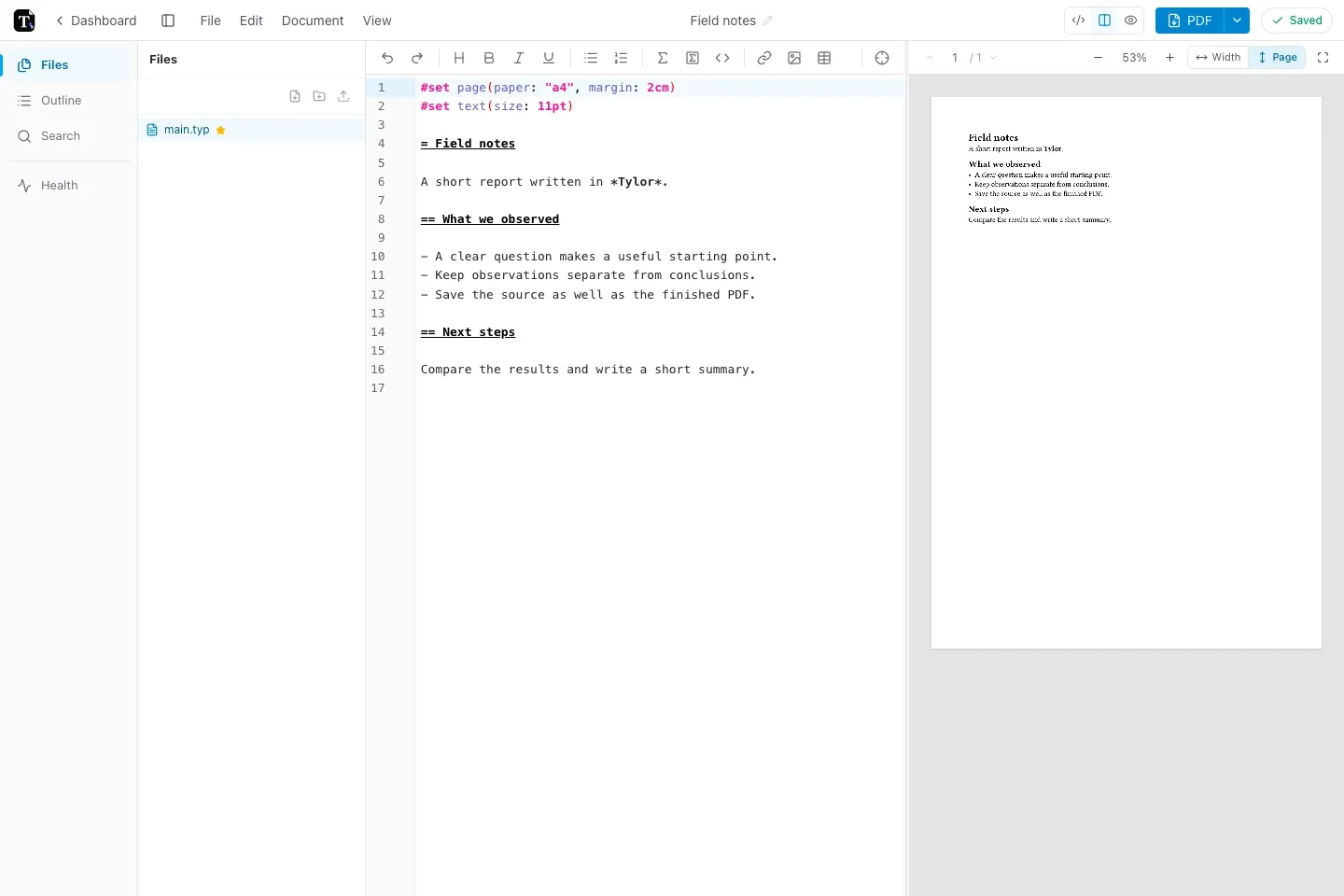
The editor combines source text, document tools, and a live preview. On a wide screen, keep source and preview side by side.
Find your way around
Section titled “Find your way around”- File contains project import, ZIP download, and PDF/SVG export.
- Edit contains undo, redo, and find/replace.
- Document contains page setup and insertion tools for tables, figures, bibliography, and more.
- View controls sidebar panels, wrapping, zoom, and theme.
The Files panel opens project files. The Outline panel helps navigate headings. Search in files finds text across the project, while Mod+F searches only the current file.
Read the preview
Section titled “Read the preview”The preview recompiles as you edit. Use View → Fit to width for reading or Fit to page to inspect the layout. Double-click a position on a page to jump to its source.
If compilation fails, the last successful pages remain visible. Read the diagnostics and fix the source; a visible page alone does not prove your latest edit compiled.
Work on a smaller screen
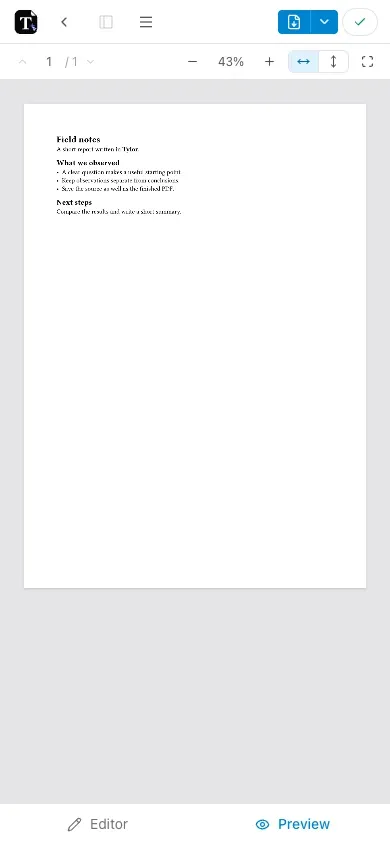
Section titled “Work on a smaller screen”On mobile, switch with the Editor and Preview tabs at the bottom. Open the menu for document actions and the file drawer to change files. Pinch the preview to zoom.
Make the editor comfortable
Section titled “Make the editor comfortable”Use the View menu to wrap long lines, hide the formatting toolbar, show the word count, or choose a theme. Only show editor, Only show preview, and Show both panels let you choose the workspace for the task.
Keep keyboard shortcuts nearby while you learn the interface.