
Sharing and permissions
Invite someone to a project
Section titled “Invite someone to a project”- Open the project’s Share dialog.
- Enter the person’s email address.
- Choose Editor or Viewer.
- Add the member and check that the person appears in the access list.
An editor can modify the document within the permissions granted by the workspace. A viewer can read it but cannot edit the source. Ownership and access management are separate from simply being an editor.
Share a folder
Section titled “Share a folder”Use the folder’s sharing action to grant access through its hierarchy. Projects can inherit access from a containing folder. If someone still has access after removal from a project’s direct member list, check folder membership too.
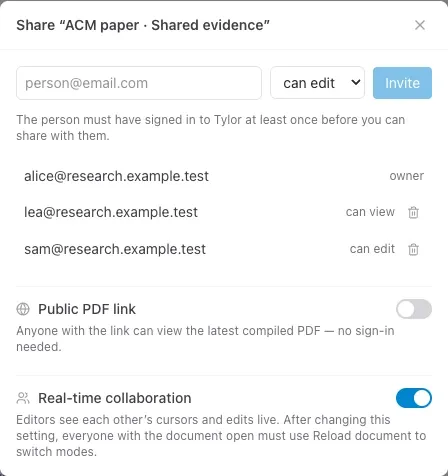
In the sample manuscript shown here, Sam needs can edit access to revise the methods and leave comments. Léa has can view access for reading. Give a reviewer Editor access if they need to write comments in the current app. The person must have signed in to Tylor at least once before you can add them.
Work at the same time
Section titled “Work at the same time”Inviting an editor grants access; real-time collaboration is a separate project setting when supported by your instance.
Share only the rendered PDF
Section titled “Share only the rendered PDF”Use a public PDF link when readers only need the output. Anyone with that link can access it. For restricted source access, invite members instead.
To give a collaborator an independently owned document, direct them to Make a personal copy.