
Local packages
Publish reusable code
Section titled “Publish reusable code”Publishing makes a version of your reusable definitions available to other documents through an @local import. It does not publish a public template. The dialog also manages existing library packages and this document’s package snapshots.
Keep shared definitions in a source project, then choose File → Publish & manage packages… in the editor. Local packages in the account menu opens the same tools. Choose a lowercase name, a version such as 1.0.0, and the entry point that exports the definitions. Publish to My library.
Another document can then import it:
#import "@local/tylor-guide:1.0.0": *This example works after you publish a package with that name and version. The screenshot below shows two reusable styles, with their saved document references expanded.
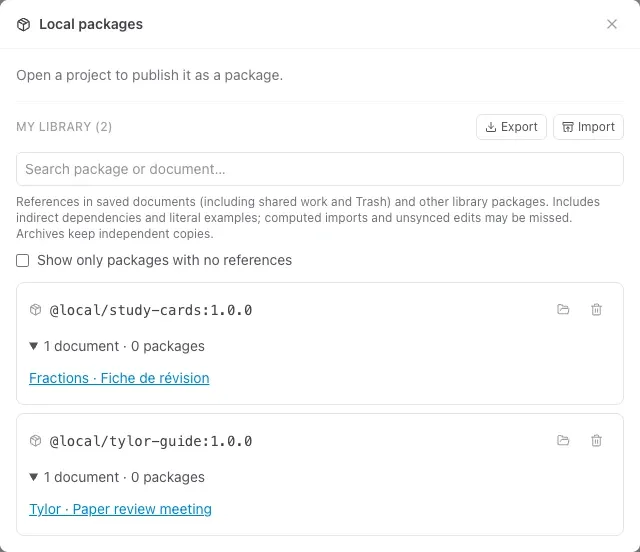
Search by package or document name to find a dependency. Expand its reference count to open a document that uses it.
My library and This project
Section titled “My library and This project”My library holds reusable account-wide packages in server mode, or browser-local packages in local mode.
This project holds independent package snapshots attached to a document, including packages restored from a build bundle. Local-mode bundle imports keep these snapshots in this browser; server accounts also support opening their package source projects for editing. A matching project snapshot takes precedence over the library version. Updating My library does not replace those snapshots.
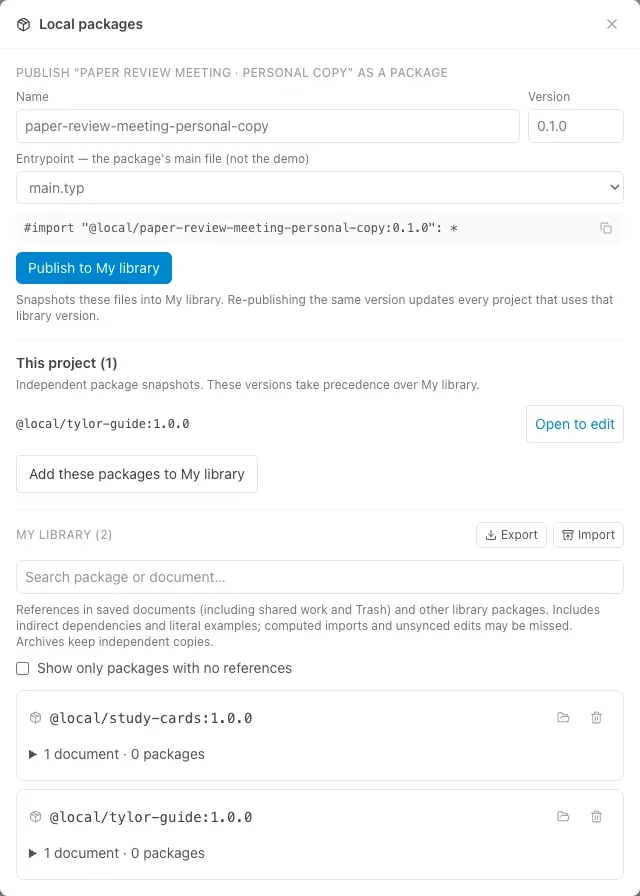
When editing a package source, save your changes and then publish explicitly. Republishing the same library version replaces that version; use a new version when existing documents should continue using the previous release.
Edit a copied project’s package
Section titled “Edit a copied project’s package”Under This project, choose Open to edit. Tylor opens the package’s source project. After saving your edits, reopen Local packages and choose Publish to copied project to update that document’s snapshot. The destination is named above the controls.
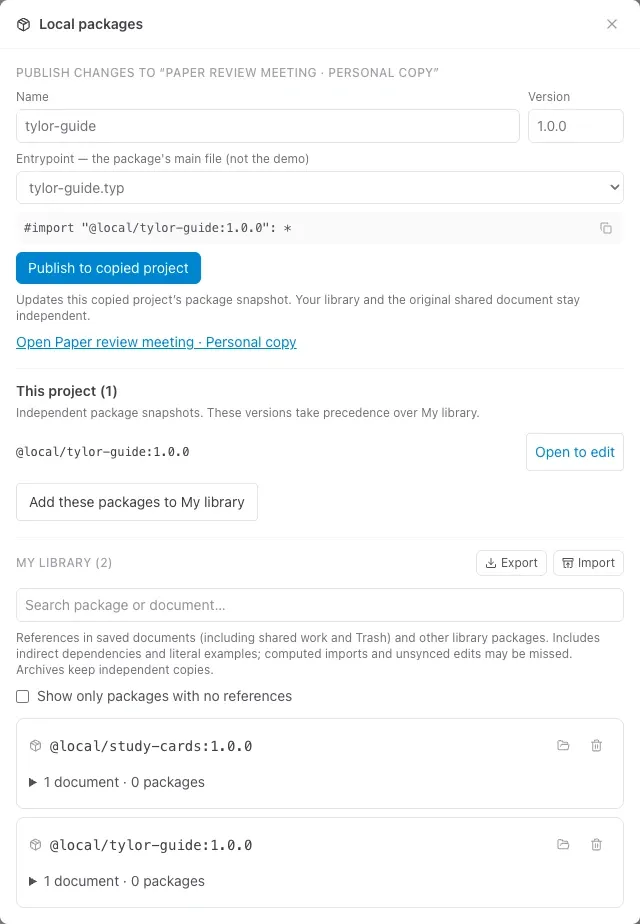
Use Add these packages to My library when you also want to reuse the snapshots elsewhere. Review any confirmation before replacing an existing library version.
Shared documents
Section titled “Shared documents”In a document shared with you, choose File → Document packages…. The dialog lists Packages used by this document, resolved from the owner’s library and project snapshots. Your personal library is shown separately.
Only the owner can publish the original document as a package. Choose Make a personal copy… in the dialog to create an independent document, then use File → Publish & manage packages… in your copy. A package-loading error is shown explicitly; an empty personal library does not mean the shared document has no dependencies.
Sharing and copying
Section titled “Sharing and copying”Shared documents use their owner’s referenced packages. A collaborator’s identically named library package does not replace them. Personal copies preserve independent snapshots so the copy can stand on its own.
Export and import your library
Section titled “Export and import your library”Choose Export beside My library to download all library packages as a ZIP backup. Use Import to restore that archive or bring your reusable styles into another account.
If a package name and version already exist, choose Keep existing or Overwrite for each conflict, then Apply. Overwriting a library version changes what documents importing that version receive. Keep the existing version unless you intend that update.
This export covers My library. For independent This project snapshots, use a submission snapshot or folder backup to preserve the document and its dependencies together.
Clean up unused package versions
Section titled “Clean up unused package versions”With a server account, you can find versions that no saved document or library package references:
- Save your documents and let pending changes sync.
- Open Local packages and choose Export to keep a backup.
- Enable Show only packages with no references under My library. You can also search by package or document name.
- Check each candidate. Clear the filter and expand a package’s reference count to see documents or other packages that still use it.
- Choose the trash icon, Delete this version, and review the confirmation before deleting.
References include saved shared work, documents in Trash, and discoverable indirect dependencies. Computed import names and unsynced edits may be missed; literal examples may also count as references. A zero count is a useful cleanup signal, not a guarantee that a version is unnecessary. If usage is unavailable, reopen the dialog before deciding what to remove.
Deleting a library version leaves independent project snapshots and archives intact. Documents relying on that library version need it restored with Import, or their imports updated to a retained version.